This is something we don’t usually do, Backup your laptops or PCs and, it’s a very important task and simple/easy to do. To Backup your laptop or Pc is very important because you don’t want to lose access to an important file that might be caused by a system failure, disk crash, accident, ransomware attack, and theft.
Doing a backup doesn’t take much of your time either is it time-consuming. Creating a backup isn’t quite difficult to do, and don’t worry the process can be automated too. So whenever you need your lost files, it will be waiting to be restored.
Our preferred software for the task is Easeus Todo Backup.
The free and premium versions of this software are available, but the free one won’t have all the available features to backup your laptop. The premium version includes the ability to transfer your system to a different PC, Outlook mail backup and recovery, and event-based scheduled backups (when you power on your PC, for example), but you can still schedule backups by time using the free software, and restore then when necessary. Check out websites to download games for your PC.
Different Types Of Easeus Todo Backup
The EaseUS has three main methods of backing up files, and all have their good and bad.
- Complete Backup.
- Differential Backup.
- Incremental Backup
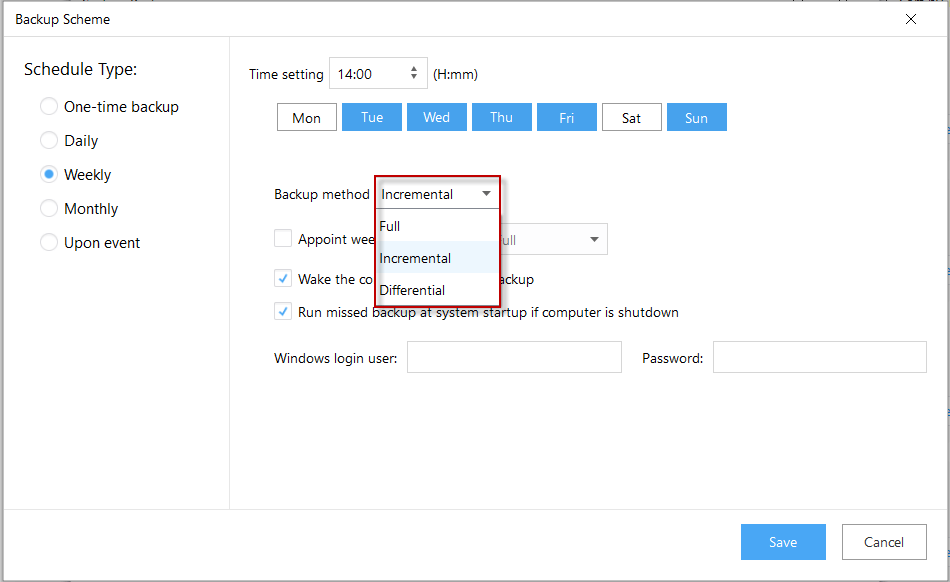
A complete backup is necessary for the first backup to store your files.
Complete Backup
This is a full copy of all files you’ve been chosen to be back up or store. It’s time-consuming and requires more storage space than any other backup type, but very fast in recovery in any case of an emergency.
Differential Backup
This is a backup of changed files that was done on the previous complete backup. This means it’s a combined backup of a complete backup and differential backup.
During recovery of your files, the two backups are combined. It’s faster than a complete backup but not as fast as an incremental backup and requires less disk space.
Incremental Backup
It’s a backup of the files that have changed since your previous backup whether a complete one or differential. The Incremental backups are the fastest and require small storage space, but slower to restore than complete or differential.
How To Make And Schedule Backups
Download the software
- Downloading the software
- Install the free version of EaseUS Todo Backup.
- Run the software and skip the prompt option to enter a license code.
Putting an “email address” may be required to move forward.
Select Files And Destination
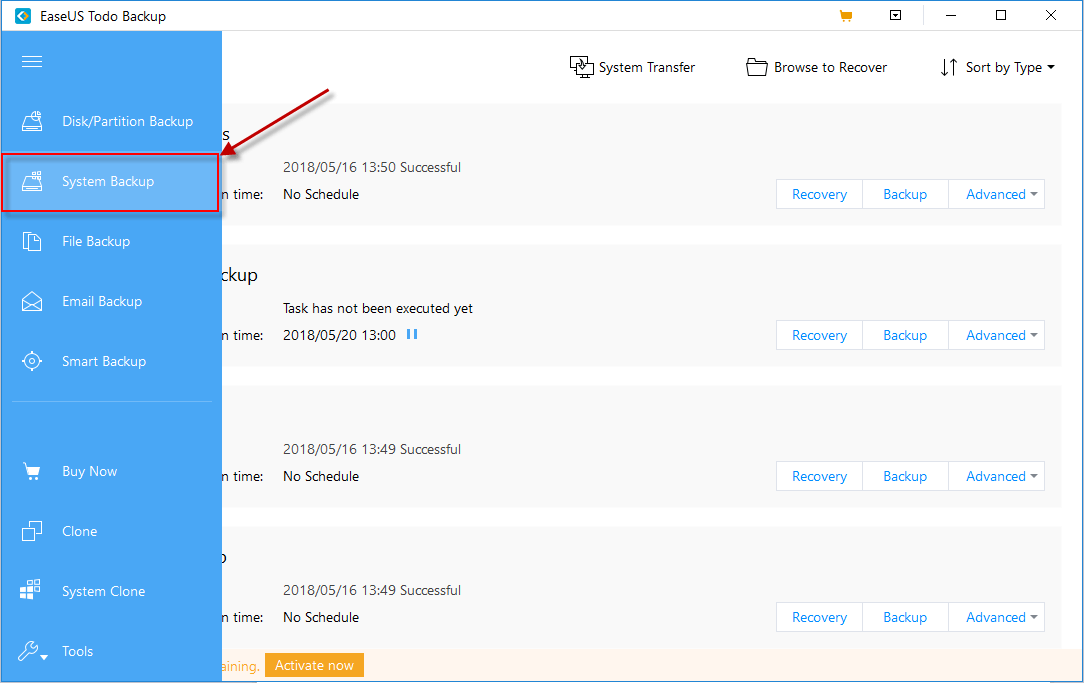
You can select ‘System backup’ to backup the whole PC, or choose the option at the left-hand menu to select a storage or certain files.
Select a particular drive or folder for the backup, preferably, an external hard drive that can be stored separately from your PC. Also, a separate internal drive will be Ok.
Note: It’s wise not to backup your original data on the same drive.
Schedule Your Backup
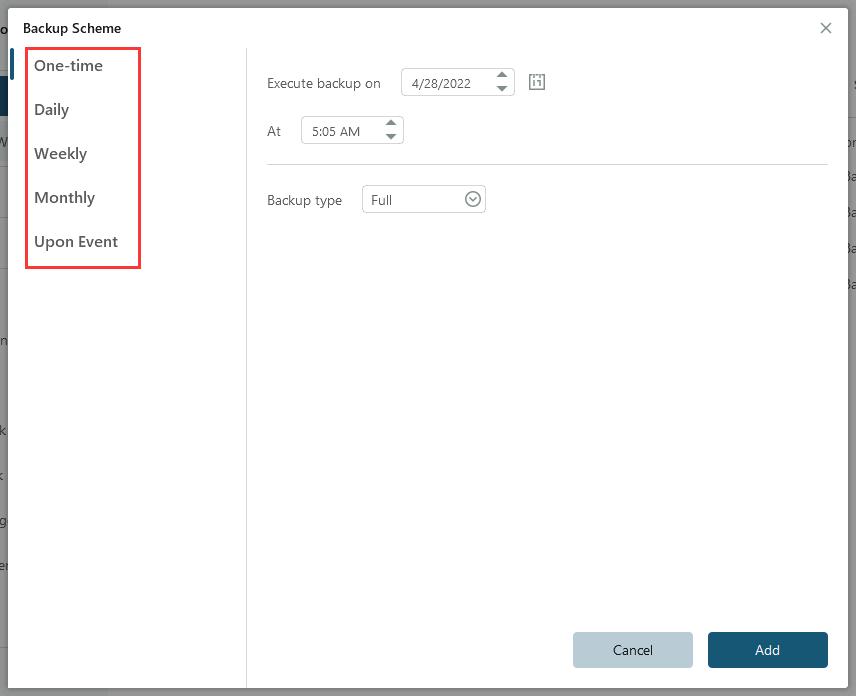
- Select ‘Schedule’, then
- select the type of files to backup whether once, daily, weekly, or monthly.
- Grant the app admin access by entering Windows username and password to allow it wake your PC from sleep to perform the backup ( which is a very useful feature when you set the timer to backup during your nap or sleep hours )
Manage Your Backups
After schedule backup, click ‘Save’ to make the first backup. On the menu dashboard-
- You can edit, delete or restore the backup and also,
- set up multiple backups for different files and time.
At the bottom right, a small pop-up to see backup progress. This is not the only app from EaseUS, You should check out this software from EaseUS – especially if you are using iPhone