Transferring files from a PC to an iPhone can be frustrating most of the time. But I am going to share with you how to do that easily with EaseUS MobiMover. The software company has been in existence since 2004 and they even have an application that can help you recover lost files on your phone. In this article, we are going to focus on how to use the software to transfer files from your PC to your iPhone.
The most amazing thing is that it supports both Mac and windows and it will save you the hassle of using iTunes that can be stressful most of the time. There are a lot of other ways to transfer files from your PC to your iPhone but it doesn’t get easier than using the EaseUS MobiMover software.
EaseUS MobiMover can serve as utility software and it comes with a friendly and easy to understand user interface. This tutorial will also guide you in case you are using an iPad as the process is the same for both devices.
The method I will be sharing in this article works for any type of iPhone from the 12 down to the iPhone 7 or the later. If you are asking the question of the type of files can you transfer with the EaseUS MobiMover then you can transfer Photos, Videos, Audio files, Contacts to mention a few? But first, you need to download and install the Software on your PC, and it has to be running on Windows 7 and above. It also works well if you download it for macOS. There are a lot of other features that the software includes Transferring videos from iPhone to PC.
Also Read- Websites to download Games for PC
How to transfer files from PC to iPhone Using EaseUS MobiMover
With the following steps I will be sharing with you here, moving files between your iPhone and PC will never be this easier. This is the best software for sending files from PC to iPhone because the connection is seamless.
First Step
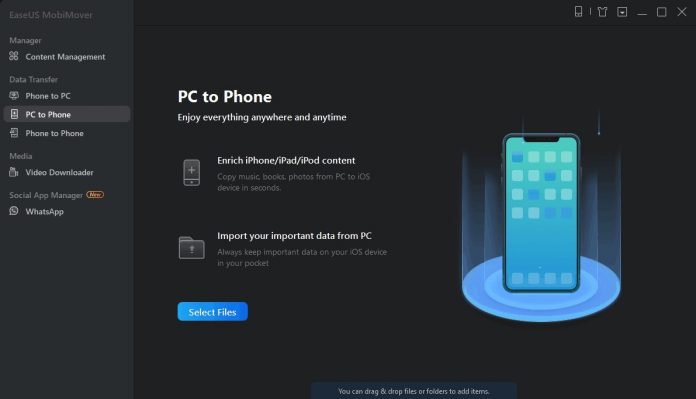
Run EaseUS MobiMover and click on PC to Phone on the User Interface. Make sure you have connected your iPhone to the PC via a USB port. Tap on trust this computer on your iPhone in case you are asked.

Second Step
Select files on your computer then click open to start transferring from your PC to your iPhone.
It is that easy and you can go ahead and place the files in different locations on your iPhone.

Third Step
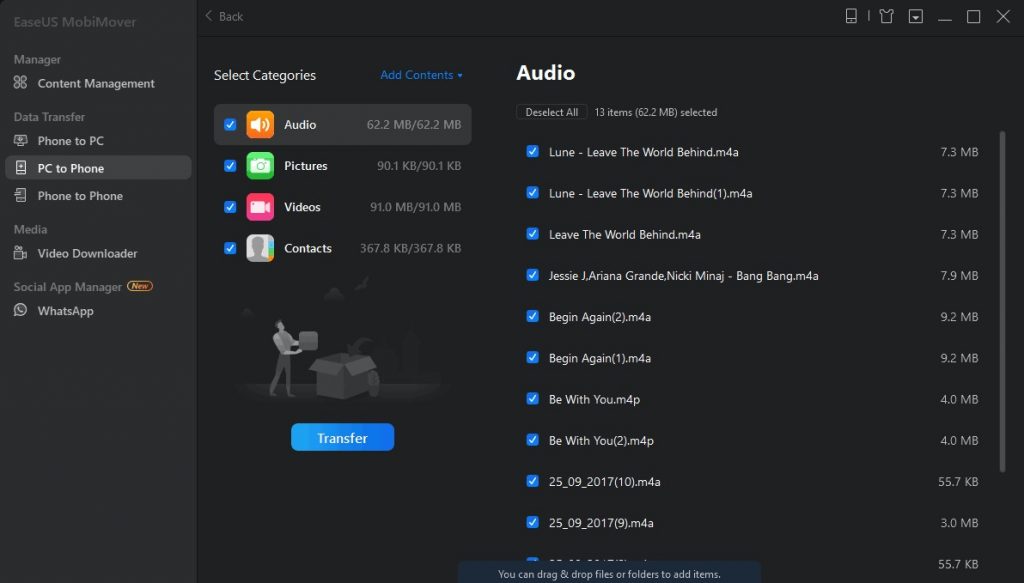
You can now view the selected files. You can add more files by clicking Add Contents or you can drag files and drop them in your preferred folder on your iPhone. Once you are done you should click transfer and wait for few minutes. After that, you can go and check the destination of the file you transferred and see if it’s there.
Other things you can do With the EaseUS MobiMover software.
With EaseUS MobiMover software, you can do more than transfer files from PC to iPhone. Check the list of features of EaseUS MobiMover
– Manage your iOS content like adding files and delete contents;
– Back up files like contacts, messages, photos, videos from iPhone to PC (read the guide for how to print text messages from iPhone)
– Transfer files from one iPhone to Another;
– Download videos from the Internet via URLs;
– Back up WhatsApp chats and restore them to your iOS devices;
EaseUS MobiMover is a great software and it should be used by iPhone enthusiasts that share files between their PC and iPhone always.