We often see Android users shifting to iPhones because of the iPhone’s better performance and functionality. But this shift is not as easy as it might seem because a lot of data transfers are involved, which might be annoying. You should be concerned about WhatsApp transfer because you don’t want to lose access to your files, messages, and chats. For that, Wondershare MobileTrans is easily the best tool for you to transfer WhatsApp from Android to iPhone successfully.
Part 1: Why is WhatsApp Superior From the Other Communication Platforms in the Market?
When there are many other communication platforms out there, why do users prefer WhatsApp? The answer to this question is straightforward. WhatsApp provides its users with likable features that no other platform offers.
Also Read : How to transfer whatsapp from iphone to Samsung device
Get ready to shift to WhatsApp if you are not using it already because here are some reasons why it is considered to be a superior platform:
1. User Privacy is Valued
Today, we are constantly connected with everyone through texts or calls, but WhatsApp’s privacy updates introduce features that show that they acknowledge privacy concerns that can arise from continuous communication. Now, you can exit group chats whenever you want without a notification alerting all group members about your departure.
With the “View Once” option, you can share media without worrying about a permanent digital record or screen-shotting attempts. Perhaps, the best privacy measure is the option to hide your online status from selected people.
2. Large Group Size
For the longest time, WhatsApp only allowed you to add 256 participants to a group chat. This was often frustrating for nonprofits and companies who use the platform to communicate with their entire team. They had to make multiple groups to solve the participant limit issue. Fortunately, the update has increased the group size to 512 participants, so you don’t have to send the same instructions to multiple group chats.
3. 2GB Files and Reactions
Besides the increase in group size, WhatsApp has also set a higher limit for file size. Previously, you could only send files under 100MB, but the new update allows up to 2GB of files. Reactions are another cool feature because it is convenient to react to a message in a fun way instead of typing a reply. These also reduce the number of messages in a group since more people will use reactions to portray what they feel instead of sending multiple messages.
4. Ease of Listening and Recording Voice Messages
The new WhatsApp features have made the entire voice messaging experience very smooth. Now, you can pause recording a voice message if your dog barks in between and resume it once the background noise has ceased. If you want to confirm the content of an outgoing message, then preview it before hitting the send button. Moreover, the new 1.5x and 2x speeds available for voice messages save you the extensive time of listening to other people.
Part 2: Wondershare MobileTrans – WhatsApp Transfer: The Perfect Tool to Transfer WhatsApp Data with Ease
WhatsApp users understand the dire need to transfer their data from their Android as soon as they get an iPhone. Wondershare MobileTrans provides a simple method of transfer as compared to other lengthy and time-consuming methods available on the internet. Rest assured, because this tool is as efficient as it can be and transfers your messages, documents, media, and all other data shared in chats. It can transfer WhatsApp data between 6000+ iOS and Android devices.
MobileTrans makes the process quick and even supports data transfers for other chatting applications. As a business owner, you will be delighted to know that you can transfer WhatsApp business in just a few clicks as well. So, let’s see the simple step-by-step process of WhatsApp transfer using MobileTrans:
Step 1: Launch MobileTrans and Connect your Phones
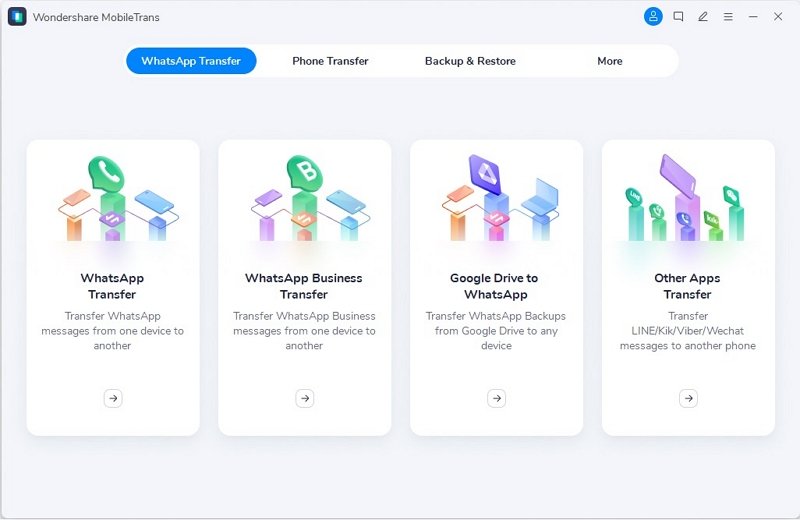
Download and launch the tool on your computer and choose the “WhatsApp Transfer” option. Next up, tap on the “WhatsApp Transfer” tab and go for the “Transfer WhatsApp Messages” option. Now you have to connect your Android and iPhone to your computer. Wondershare MobileTrans will load your text messages and attachments before transfer.
Step 2: Start WhatsApp Transfer
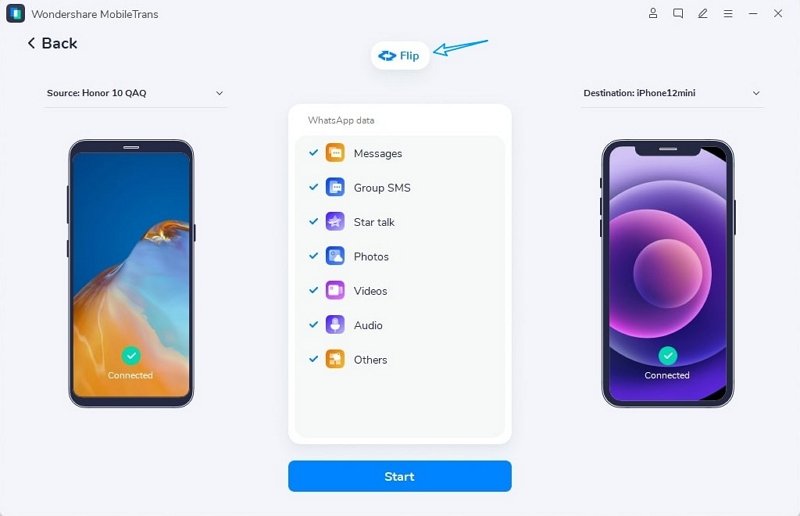
To begin the transfer process, click the “Start” button. It won’t take long for the process to conclude, so wait for some time. Make sure your Android is the source and the iPhone is the destination. You can use the Flip feature to change the source and destination.
Step 3: WhatsApp Transfer Concluded
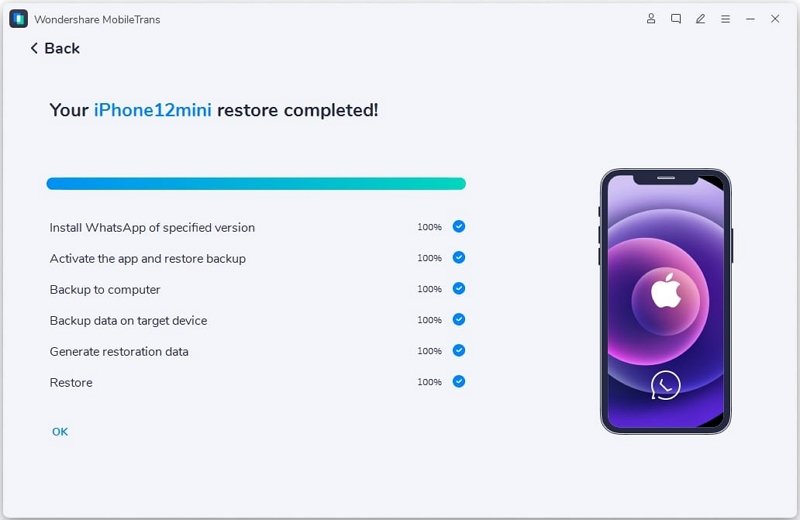
Do not move your phones before the process has been successfully completed. Once the transfer is complete, you can disconnect your phones and confirm if the data has been transferred to your iPhone. Open WhatsApp and start using it on your new iPhone.
Bonus Part: Have An In-depth View of WhatsApp Functions Offered by Status Saver for WhatsApp
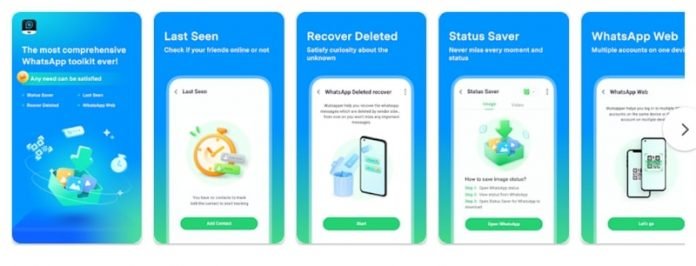
Status Saver for WhatsApp is a tool for everyone who wants to uplift their user experience on WhatsApp. It allows users to break free of the restrictions developers have placed on them. Imagine that you like the WhatsApp status of a friend who uploaded a group picture of your class from years ago. You can save the picture because Status Saver for WhatsApp allows you to save a status by following three simple steps.
But its features include more than just status saving. You can also use it to get rid of the irritating “This message was deleted” sight. The tool lets you read deleted texts and listen to voice notes as well. You must be fascinated already, but Status Saver for WhatsApp has a third feature as if two amazing ones weren’t enough. You can finally use two WhatsApp accounts on one phone and draw the line between your personal and business life!

Conclusion
If you are an active WhatsApp user, then don’t give it a second thought and try out these WhatsApp tools today. Use Wondershare MobileTrans and avoid lengthy processes the next time you want to transfer WhatsApp from Android to iPhone. Also, do not let WhatsApp’s restrictions govern your user experience. With Status Saver for WhatsApp, freedom is just a step away, so use it today and avail all the fantastic features.