When your iPhone gets stuck with an Apple logo, it can be annoying as it can disrupt your daily activities. There are various reasons that can make your iPhone stuck with an Apple logo. One of the common reasons can be physical damage to your iPhone. If you have mistakenly dropped your iPhone, physical damage may happen to its internal hardware. This may result in serious issues like iPhone stuck on Apple logo.
There are other contributing factors, like software issues that can generate this problem. Using an outdated iOS version or executing a failed software update can make your iPhone stuck with an Apple logo. This article will introduce an effective tool through which you can perform an instant iOS system recovery to get rid of the Apple logo on your iPhone.
Part 1: Learn About the Best iOS System Repair Software for all iPhone Devices
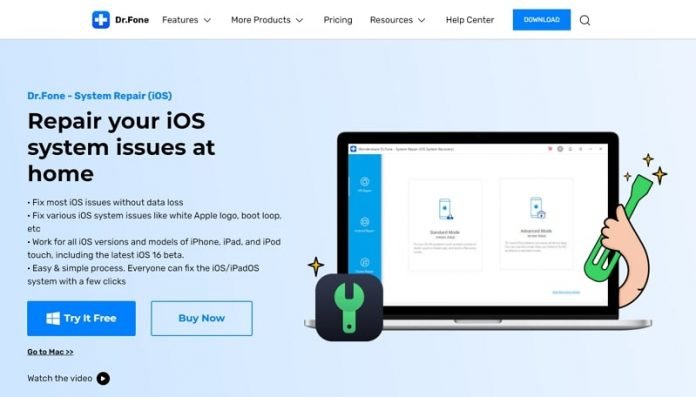
Dr.Fone – System Repair (iOS) is an excellent tool that can fix every iOS issue through its advanced algorithm. This repairing tool has a clean user interface, allowing you to detect and resolve iOS system errors instantly. Using this platform, you can fix common iOS issues without harming or deleting the existing data on your iPhone. Thus, you can perform iOS system recovery without deleting your iPhone’s stored data and files.

The process of resolving iOS system issues is fast and simple, allowing you to accomplish the results within a few clicks. Apart from fixing the Apple logo stuck in your iPhone, you can also tackle other common problems. For instance, the scenarios like white screen of death, recovery mode, black screen, and frozen screen can be professionally handled through Dr.Fone.
Key Features of Dr.Fone – System Repair (iOS)
- Dr.Fone offers two repairing modes known as Standard and Advanced Modes. To resolve common iOS issues, you can use Standard Mode. On the other hand, Advanced Mode can be preferred to tackle severe iOS problems or errors.
- The user interface of Dr.Fone is friendly and well-described. Thus, non-professionals can use it without any complications.
- It also supports the latest iOS 16 version and newly released iPhone 14 models.
Steps to Perform System Repair (iOS) Using Dr.Fone
Step 1: Proceed to System Repair
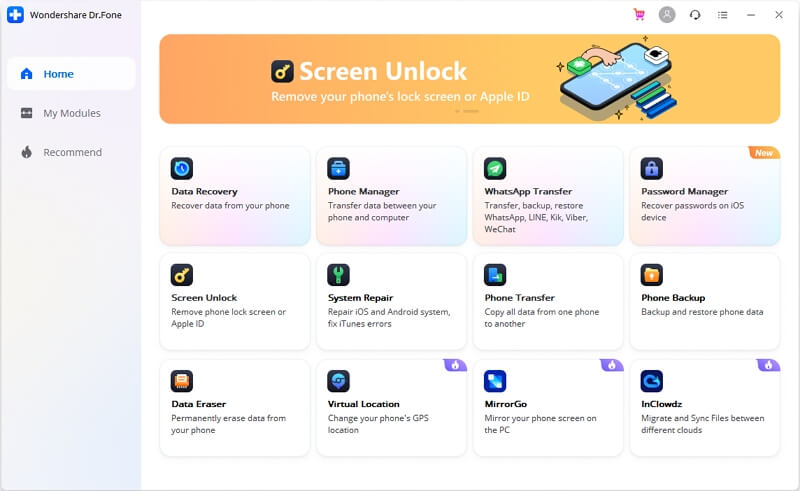
After downloading and installing Dr.Fone on your PC, open its interface to begin. Select “System Repair” and attach your iPhone to the computer using its lightning cable.
Step 2: Install iOS Firmware
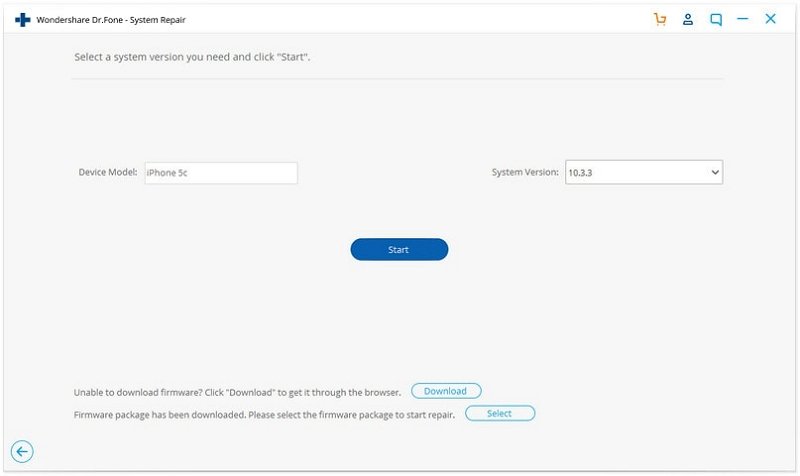
Now choose “Standard Mode,” and the software will detect your iPhone model automatically. You can also see the displayed iOS versions on your screen. Choose your iOS version and hit the “Start” button. It will start downloading the firmware on your PC. If the firmware is not installed automatically, you can also click on the “Download” button. Also, click the “Select” button to restore the downloaded firmware from your web browser.
Step 3: Fix the iOS Issue
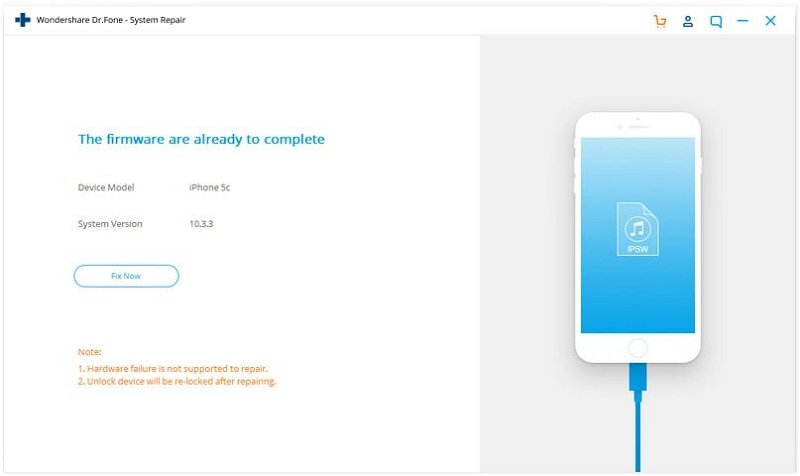
The tool will start verifying the downloaded firmware. Once the verification gets completed, tap on the “Fix Now” button. By doing so, you will initiate the iOS system repair process instantly. Within some minutes, the tool will resolve your iOS system issue successfully.
Conclusion
It can be quite frustrating when your iPhone is stuck on the Apple logo. This issue can occur due to software or hardware issues. To avoid further complications, you can try Dr.Fone – System Repair (iOS) tool. This tool guarantees 100% safe and secured results in resolving your iOS system issues. Through this easy-to-use software, you can instantly solve iOS problems without data loss.