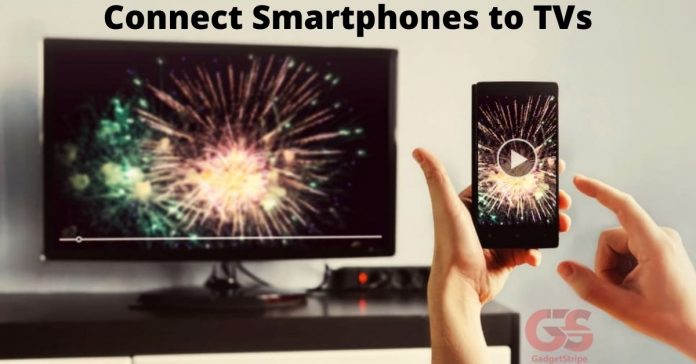
Gadgets and smart devices are mostly what we have in our homes than ever before. A lot of us can’t seamlessly connect them, but we mostly think it’s a lot of hassle which isn’t. This is a piece about Connecting your TV with smartphones.
Connecting your TV with an android smartphone, tablet, and laptop open up lots of handy ways to stream and cast your media. It’s convenient when you might want to show pictures to your friends and family, stream a video or watch a movie in higher resolution than your phone, or you’re working with your phone, and you want a larger screen view of it.
With the vast movement of technology, Modern TV’s are usually smart TV’s – you should check out the things you should note when buying new TVs. This simply means that TVs can connect to the internet and come with apps like Netflix, YouTube and so.
if your someone who keeps most of your multimedia files in your phone or tablet, and still would rather keep a play session on your phone while you still view on a TV – here are answers for you.
Way of Connecting Your Tv With Android and iOS Smartphone
HDMI

An HDMI is a reliable way to get connected to a TV using an HDMI cable. All smart TV comes with HDMI port of some sort, even most of the regular TV has HDMI. With HDMI, you can seamlessly transfer both audio and video from one source to another.
Yes, An android phone doesn’t have an HDMI port, but it has a USB port which is very handy and you can get an adaptor or cable that has bolt HDMI ports onto a USB Type-C, micro USB, or lightning port. There are some Android tablets that have a mini or micro HDMI port that can be easily connected directly to HDMI with a single cable. Whichever device you intend to connect from, your cable needs to be compatible with that connection.
USB
A phone charging cables end with a USB connector, for easily connecting with laptops or power adaptors. This an easy way of connecting to your TV.
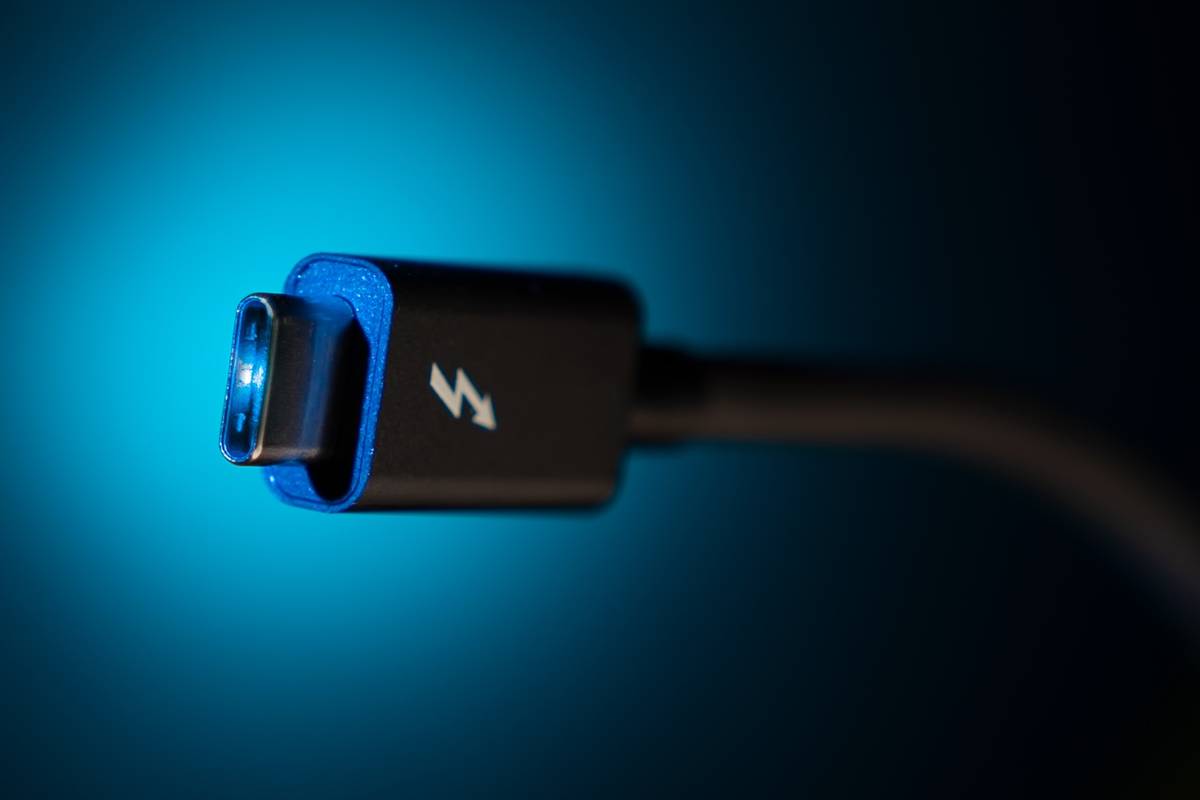
Technically, a USB cannot transmit your phone display onto the TV but can transfer your files into the TV. It’s a much more effective way of looking at your photos and videos.
By following this instruction you can connect a laptop, desktop PC, and TV.
- Locate the USB port on the TV
- Plugin your cable into the TV.
- connect your phone
- A notification prompt will appear on the screen. Select ‘Transfer files’ to enable you to transfer files.
By default, it is set as ‘charge the device’ through your TV
Wireless Casting
If you’re someone who dislikes wires or cable all over the place, then casting is an option for you.
Casting is the process in which a phone or tablet can wirelessly stream content to television by connecting to the same WiFi network.
Recent android apps can cast directly to the TV, mostly from Android 4.2 upwards support the Miracast casting standard.
To enable Miracast:
- Dive into your “Display settings”.
- Check under “Cast”.
- select “Enable Wireless Display” to search closeby devices to cast to.
Connecting Your iOS Smartphones To TVs
AirPlay
On iOS devices, AirPlay is Apple’s proprietary technology for casting wirelessly.

Naturally, it was designed to work between Apple products only. For Airplay to work, both devices need to be paired to the same WiFi network, then they will Auto-detect each other. You’ll be able to select the AirPlay connection in your device settings and connect the same way you would with Bluetooth for connecting to wireless headphones.