You might think you’re using your iPhone to its fullest potential. But there are so many hidden features that you may not know about especially with some iPhone tricks and tips. A few of these tricks can be used on the iPhone 11 and also on previous iPhone devices.
If you know some iPhone tricks, you’ll be more confident to maximize your mobile device’s use to improve your scheduling, work, social activities, and other tasks you need to perform daily. You can also check similar information at Solve Your Tech and other reputable online sources dedicated to helping iPhone users. Tech experts have years of experience dealing with various phone problems, making them the best advisors when issues arise.
Here are the most useful iPhone tricks to make your life easier.
DARK-MODE FEATURE
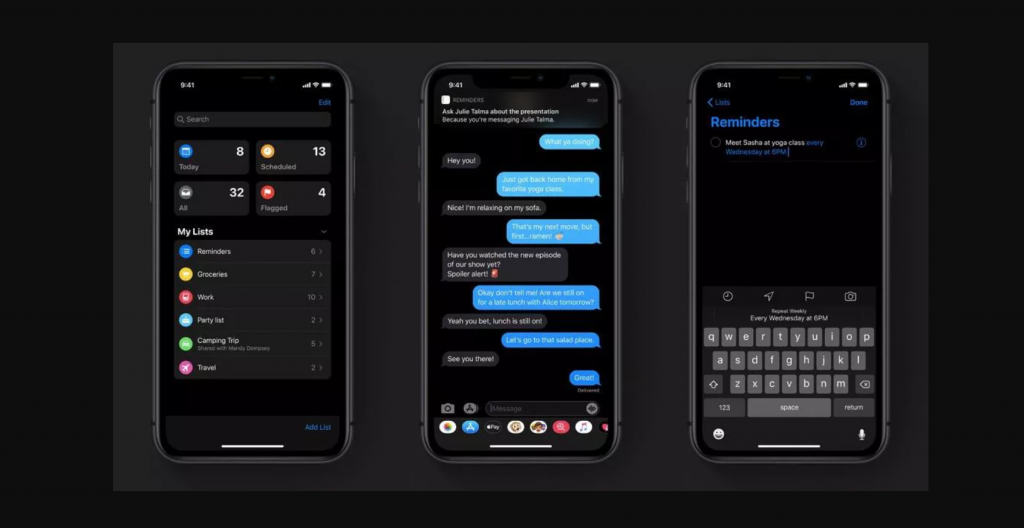
Here how you can enable the Dark mode feature
- Go to Settings
- Enter “General”
- Click “Accessibility”
- enable “Zoom”
- triple-tap the screen with three fingers.
- Select “Choose Filter”
- Click Low Light.
To disable this feature, just triple-tap the screen with three fingers again, and select None. This is one most amazing and most waited feature on iOS 13
CUSTOMIZE YOUR CONTROL CENTER
- Go to Settings
- Enter Control Center
- Click Customize Controls. Add, remove, and rearrange various controls.
ACTIVATE SCREEN RECORDING FUNCTION

While customizing the Control Center, you can enable the Screen Recording function. It enable you to record your screen. Then, you can bring up the Control Center and tap the record button.
HOW TO AUTOMATICALLY UPLOAD PHOTOS AND VIDEOS TO ICLOUD
- Enter the main Settings
- Tap your name
- Go to iCloud
- Go to Photos
- Switch iCloud Photos to “ON”.
This will automatically upload all your photos and videos to iCloud.
HOW TO BACKUP OTHER FILES TO ICLOUD

You can also set another backup for files like Mail, Messages, and other apps.
- Enter the main Settings
- Tap your name
- Go to iCloud
- Scroll down to “iCloud Backup”.
- Click ”Back Up Now” to back up things like app data, settings, and photos.
HOW TO ORGANIZE NOTIFICATIONS
- Enter “main settings”.
- Select “Notifications”.
- There you can do things
Notifications are grouped by app, but you can change that with each app individually. One of the iPhone tricks and tips that I love the most
HOW TO ORGANIZE APP NOTIFICATIONS INDIVIDUALLY
Another iPhone tricks and tips is organizing your notifications. You can choose to have your app show notification messages all up individually.
- Enter “main settings”.
- Select “Notifications”.
- Select any app.
- Choose how you want to organize the notifications.
HOW TO DISABLE NOTIFICATION PREVIEW
Disabling notification preview gives you the ability to get complete notification privacy for that specific app. You can also disable Notification previews for specific apps.
- Enter “main settings”.
- Select “Notifications”.
- Select any app.
- Change Show Previews to Never.
HOW TO SET DIFFERENT ALERTS FOR CALLS AND TEXT
Creating custom alerts for your calls and texts helps you know exactly who is trying to reach you without looking at your phone.
- Enter the “main Settings”.
- Select “Sounds & Haptics”
- Select “Ringtone, Vibration”.
- Create New Vibration, tap out a pattern, and save it.
- Next step, is to assign it to a specific contact
- Go to your address book.
- Choose the contact.
- Tap Edit.
- Select the tone or vibration you want to assign, then press Done.
HOW TO ADD SLANG TO YOUR DICTIONARY
If you have a word or a phrase that you use a lot and your iPhone keeps auto-correcting, you can add it to the Dictionary.
Select “Text Replacement” in the General menu under Settings. Tap the “+ sign” and enter the word you want it to remember.
HOW TO SET EMERGENCY CALL
If you’re ever in trouble, your iPhone can be set to send an emergency call.
- Enter settings.
- Scroll down to Emergency SOS.
- Enable Auto Call, and Call with Side Button.
By pressing the power button five times, or pressing and holding power and volume up or down will make an emergency call.
HOW TO DISABLE IN-APP RATING AND REVIEW
Below the Emergency SOS setting, is the iTunes & App Store Click on it. From here, you can disable all those annoying requests to rate apps.
Just select “disable In-App Ratings & Reviews”.
HOW TO SETUP GRID SETTING FOR YOUR CAMERA
- Go to “Settings”.
- Enter “Camera”.
- Turn ON the Grid setting.
This will help you to take perfect overhead shots and perfectly leveled line upshot.
HOW TO USE YOUR IPHONE AS A ROUTER
- Go to Settings.
- Personal Hotspot.
- Set a password.
- Switch the Hotspot to “ON.”
Your iPhone will appear under available WiFi networks. Connect by entering the password. Be aware, this will rely on your phone’s data.
HOW TO USE VOICE COMMAND
If you ever in another app and you want to quickly access a function or app, all you have to do is say, “Hey Siri, the function or app,” and she will bring you right there.
HOW TO DELETE NUMBER USING THE CALCULATOR EASILY
Ever type in the wrong number in your calculator?
Just swipe, and it will delete the last-entered digit.
HOW TO TURN YOUR KEYBOARD INTO A MOUSE TRACKPAD.
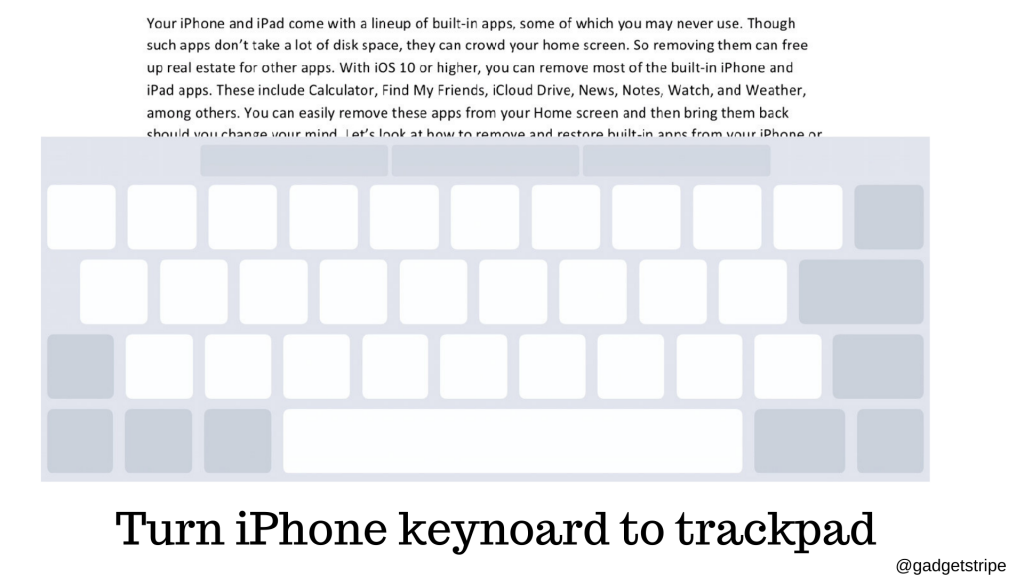
One of the most useful iPhone tricks that most iPhone users are unaware about. Using your iPhone as a Trackpad is quite surprising. Here is how to do that
- Typing text in any app.
- Force press on the keyboard.
The letters will disappear, and it will let you move your cursor around a block of text. This trick is very handy if you ever need to sign a document.
When To Hire A Professional
Hiring a professional for your iPhone is necessary when you face issues that basic troubleshooting cannot resolve. This includes physical damage like a cracked screen or water damage, software problems leading to freezes and crashes, and data recovery needs. It’s also advisable to consult a professional if you’ve jailbroken your device, as unauthorized modifications can lead to problems.
Network or connectivity issues, battery and power problems, or the desire to upgrade hardware components warrant professional assistance. Complex software issues, such as problems with the iOS operating system, and concerns about warranty and insurance should also prompt you to seek professional guidance.
Additionally, in the event of a lost or stolen device, contacting your service provider or Apple is crucial to secure your personal data. Remember to choose reputable and authorized service providers for iPhone repairs and services.
What were your favorite iPhone tricks and tips? Let us know in the comments.
Copyright @gadgetstripe