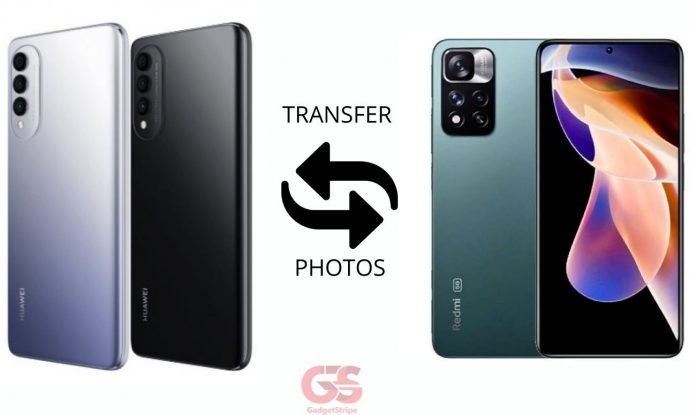
For you to know how to transfer photos from one android device to another we all know that Android devices have been a major help in our day-to-day life, it has practically stopped the boredom we undergo. We do a lot of fun things with our phones, we chat, watch videos, make calls, etc.
ALSO READ – Connect apple watch to a Bluetooth speaker
Due to research most people tend to change or buy a new phone every one year or two years on average, and they would like to send their photos from the old phone to the new phone, it’s pretty much easy doing so.
How to transfer photos from Android to Android
You can transfer photos on your Android Via these easy 3 options available around the world:
- Bluetooth
- Xender
- SHAREit
How to transfer photos Via Bluetooth
Bluetooth is actually great in transferring photos from one Android device to another and it’s fast, reliable, and easy. We will show you how you can use it to transfer photos.
Moreover, Bluetooth works on a short-range transmission when it comes to transferring photos
- Go to Settings on your Android device.
- Select Bluetooth and turn it on.
- Make sure that the Bluetooth of the phone your sending the photo to is turned on.
- Now locate the photos you would like to send and mark them.
- At the top right corner of your screen, you will see 3 options, select the Share icon.
- Finally, select Bluetooth and search for the other phone’s Bluetooth name, then select it that’s all.
- To locate where the photos are, quickly go to Gallery or Photos on your app Tray.
How to transfer photos Via Xender
This is actually the best application you can use to receive & transfer photos, videos, files, and applications from Android to Android devices easily and its efficiency is extremely accurate, it’s reliable and very fast so let’s get right on It.
- Go to Play Store search and download “Xender“.
- Open the application and click on ‘Send’ (if it’s your first time of using Xender then you are advised to turn ON your Location).
- The other Android device that is receiving the photo must have Xender installed on it.
- Open the Xender application from the other Android device and hit the receive button and select open Wi-Fi.
- It will search for nearby devices and once it’s done select the name that pop-ups.
- Finally, after a successful connection, go straight to photos and select the photos you want to send, and tap on Send.
- To locate the photos you just sent, go to app Tray and select Photos.
How to transfer photos Via SHAREit
This is another good application that you can use to transfer photos in bulk. In addition to this, the application is actually easy to use and the interface is also different when compared to Xender, So let’s go straight to how we can use it to transfer photos from Android to Android.
- Go to Play Store and get SHAREit installed on your device and open the application.
- Again Download, install, and open the application in the Receivers device.
- Click on RECEIVE on the receiver’s device and tap on SEND on the sender’s device.
- When you tap on SEND on the sender’s device, go to the photo and select the photos you wish to send, and click on SEND.
- Now it will start searching.
- A pop-up ball will appear on the screen of the receiver showing your device name click on it.
- Finally, when it connects, it will start sending the photos.
- To locate the photos you just sent all you have to do is go to Gallery or Photos on your app Tray.
That’s just actually the easy and best way you can definitely use to transfer photos from one Android device to another.
As you can see all these methods are so convenient when it comes to transferring of photos from one Android device to another.