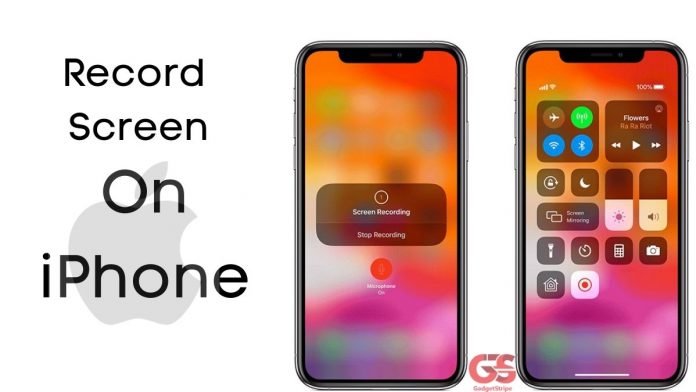
iPhone and iPad screen recording is a feature that allows you to record video and audio playing on your device. we’re going to be showing you how to use this awesome feature to record screens with audio on iPhone.
To make things much easier to record your screen on iPhone or iPad device, it is better to bring the screen record to the control center for easy access.
How To Add The Screen Record On Control Center
First, you need to make sure that your iPhone is running on iOS 11 or later.
- Go to settings => control center.
- Scroll down, Tap the green circle next to the screen recording.
Once the screen recording option is Activated on the control center then we proceed.
How To Record Your Screen With/Without Sound on iPhone/iPad
You can record your iPhone screen with/without sound, including system sounds and external sounds. To begin recording:
- Open the app that you would like to be recorded and then begin the media that you would like to record.
- Open control center, on the iPhone 6 or later/an iPad with IOS 12 or later
- Swipe down from the upper right Conner of your screen. On earlier iPhone versions, swipe up from the bottom of your display.
- Once you have opened the control center, Tap or long-press the screen record icon.
- Choose where you want your screen recording saved.
- If you want to record your voice while screen recording, tap the microphone to turn it ON.
Note: If you only want to record the sounds of an app then you want to make sure that the microphone is turned off.
- Once you select the App that you want, tap start recording. Your iPhone will begin recording the screen.
- The clock in your app will then have a red background indicating that the screen is being recorded.
- To stop recording, tap the clock, and then tap stop to end the screen recording.
- The recording will be saved in the location that you selected earlier.
Enabled Your Microphone & Voice Isn’t Recording
The solution is your microphone permissions aren’t being turned on in the app. To make sure the microphone permissions are turned on for the app that you want to record:
- Go to settings,
- Enter privacy,
- Click microphone and toggle on any app that you would like voice-over capability for while screen recording. Toggle off the app if you don’t want voice-over or ambient noise recorded along with that screen recording.