
Why Backup Files between Dropbox and Google Drive?
Dropbox and Google Drive are popular and excellent cloud storage services that provide users with online storage space to save different types of files like photos, documents, videos, and so on. Both services allow users to collaborate with teammates by sharing, which is convenient when they do remote jobs.
Although Dropbox is useful, only saving data in just one place is not secure. So, it is recommended to back up important Dropbox files to Google Drive. In this way, users no longer need to worry about data loss since they have backups. Meanwhile, it reduces potential expenditure that may is caused by data recovery.
The point is how to back up files between Dropbox and Google Drive directly without going through the troublesome process of downloading and uploading. This article introduces a practical service that is used for cloud-to-cloud backup.
How to Backup Files between Dropbox and Google Drive Easily
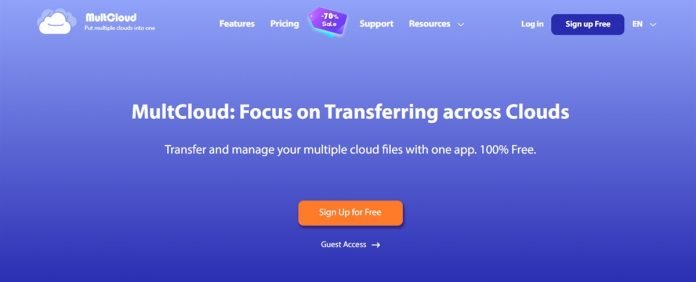
MultCloud is a service that can help users back up various files and folders from one cloud to another directly and effortlessly. It is a web-based cloud service that is about to launch its mobile app. Currently, it supports over 30 popular cloud services, such as Google Drive, Google Photos, Dropbox, OneDrive, OneDrive for Business, Flickr, MEGA, Amazon S3, SharePoint, Wasabi, and more.

So, users can add these cloud services to MultCloud, and then they can manage them in one platform. With MultCloud, users can perform what they can perform on the official website of any cloud. For example, users can upload a document to OneDrive, download photos from Dropbox, rename a photo on Google Photos, share a folder on Google Drive, copy, create a folder, and delete.
On top of basic features, users also are able to back up files between cloud drives directly without taking up the storage space of users’ computers. And there are many other benefits that users can enjoy if they choose to use MultCloud to back up files between cloud drives:
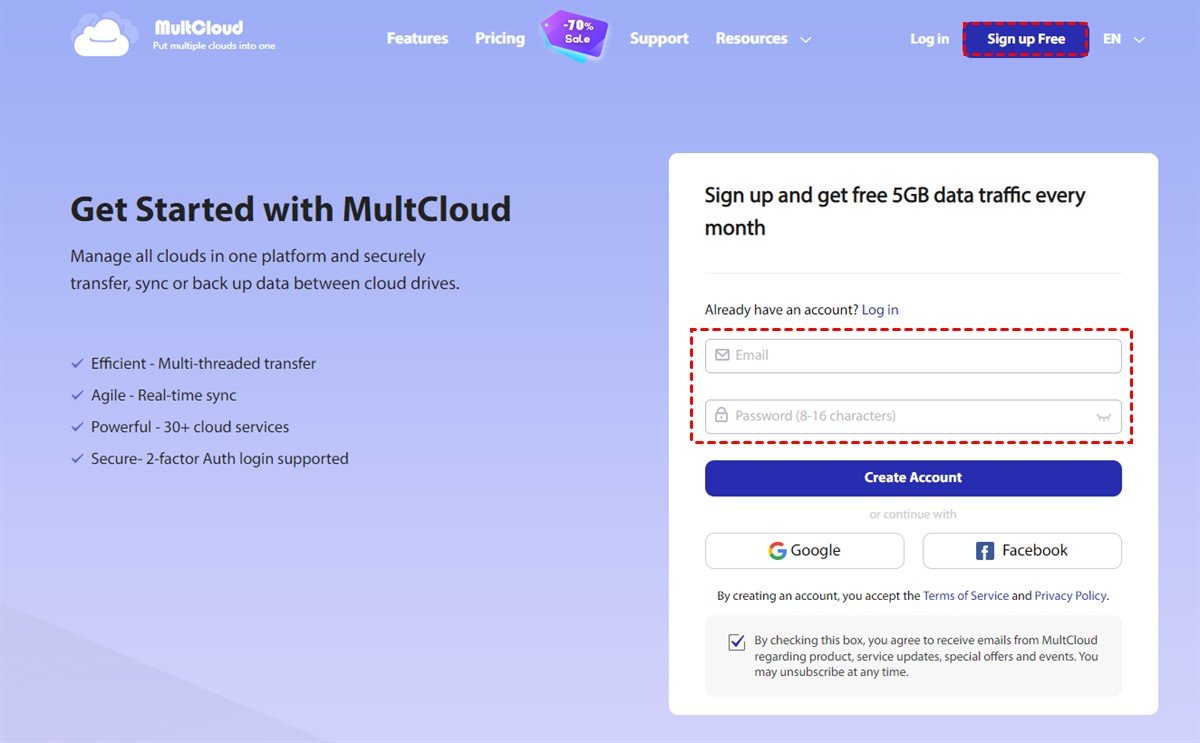
- Free to Get Started. MultCloud is free to start, so users don’t need to subscribe to it at the beginning. Meanwhile, it gives signups 5GB of free data traffic per month for users to back up data between cloud drives.
- Direct Backup without Downloading and Uploading. With MultCloud, users don’t need to download files from Dropbox first and then upload them to Google Drive. Instead, it offers a direct way and can help users back up data between clouds on the web directly.
- Automatic Backup Supported. There are 4 options for users to choose from when they want to set up scheduled backup tasks, such as running monthly, weekly, daily, and at a specific date. Once setting, files can be backed up automatically.
Now, here’s how to transfer files from Dropbox and Google Drive by using MultCloud:
Step 1: Sign Up. Create an account by your email if you don’t have a MultCloud account,
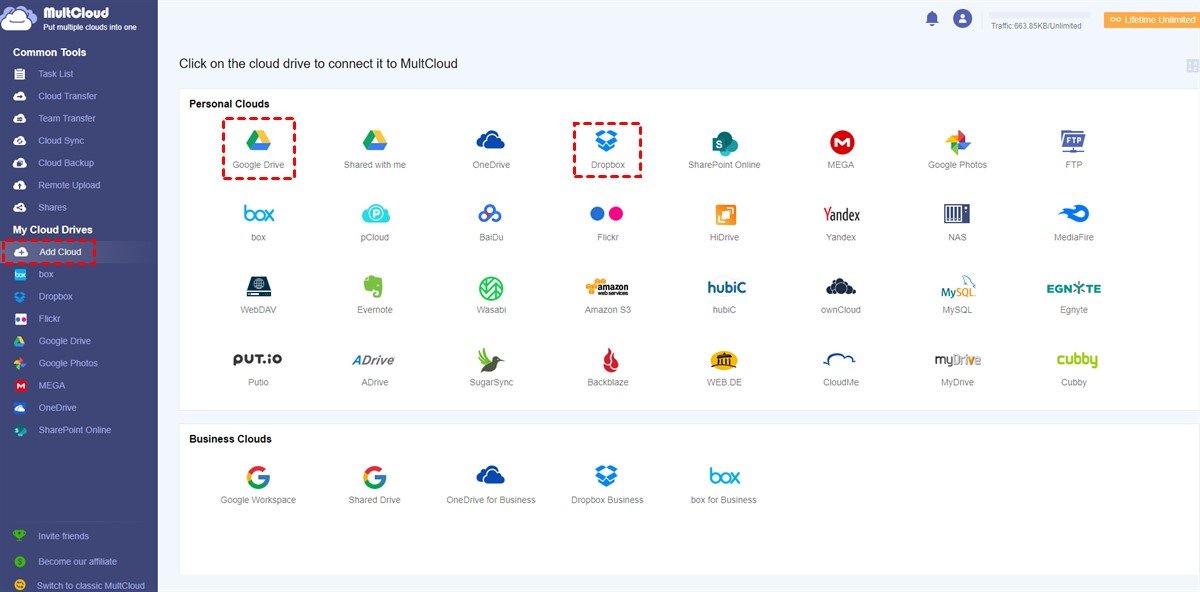
Step 2: Add Cloud. Hit the Add Cloud button on the left side. Then hit the icons of Dropbox and Google Drive to add to MultCloud, then grant it access.
Step 3: Now, proceed to Cloud Backup on the left navigation bar. Then choose Dropbox as the source cloud service and Google Drive as the target cloud service. At last, click on the Backup Now tab to start the task.
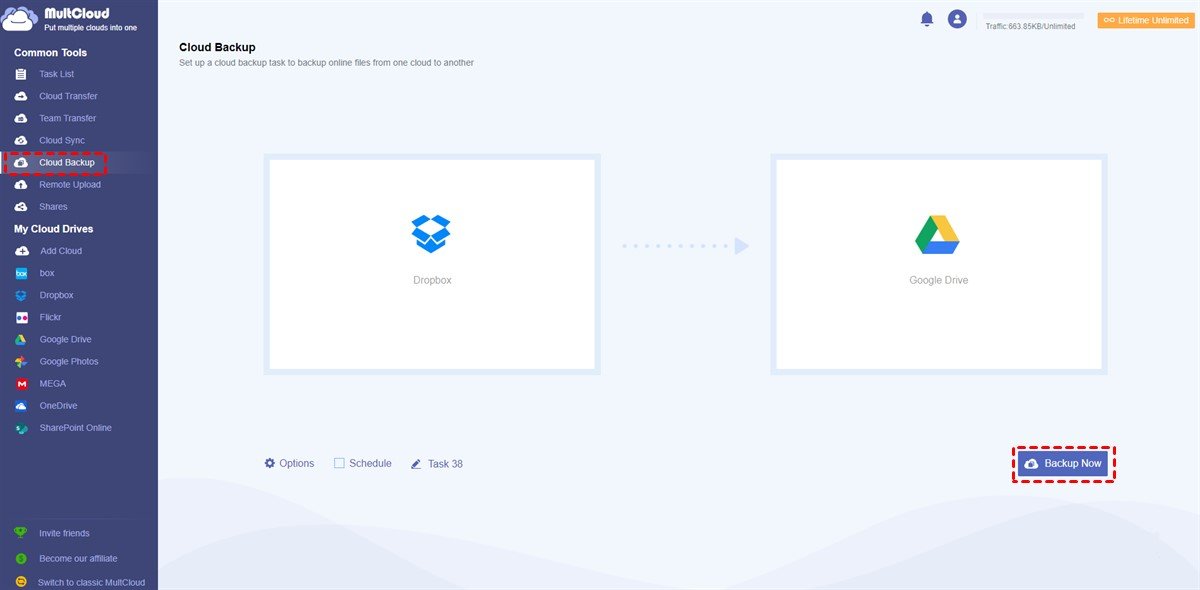
As you can see, you will only need to perform 3 steps to accomplish the backup task between Dropbox and Google Drive. Similarly, when you want to backup Synology to Wasabi, you can apply the same method and finish the task easily.
In addition to backing up files between cloud drives, MultCloud is also good at syncing and transferring files between cloud drives. For example, you can make Box to Wasabi migration with the help of Cloud Transfer on MultCloud.
Verdict
After reading the whole post, you now know how to transfer files between Dropbox and Google Drive directly and easily via MultCloud. Now, you can try this service to see whether it is helpful or not. Also, you can migrate and sync data across cloud services easily without going through a cumbersome download-and-upload process.