When you get and set up a new Android phone, you may be excited in the beginning. However, almost all the excitement and joy seem to disappear as you face heavy data transfer. If you can quickly transfer data from the old Android to the new Android, will your delight come back?
Let this post protect your happiness, which displays 4 tips to help you transfer data from Android to Android without effort.
What’s more, they can transmit multiple types of data that people usually want to move, such as –
- Contacts
- Text messages
- Photos
- Videos
- Apps
- Music
- ……
Therefore, you can choose a way below according to the content to be transferred.
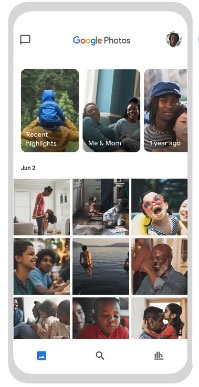
Sync Photos & Videos with Google Photos
Although you have bulks of photos and videos on the old Android device, Google Photos can fast synchronize them to the new device. Even if you don’t have a Google account, as long as you install Google Photos on your phone or tablet, you can sign up for your personal Google account handily.
It is easy to use Google Photos. After signing in, you can tap the “Plus” icon and upload the desired photos and videos manually. Moreover, you can turn on the “Back up & sync” feature, and then it can automatically synchronize your data.
Next, log in with the same account on the new phone, and you can view the uploaded photos uploaded on the new Android handset.
Send Music & Documents via Bluetooth
Please don’t forget that Bluetooth can help you transfer files between Android devices. Bluetooth is suitable for transferring small files, such as several pop songs and documents. However, you will spend much time sharing large files because of the low transfer speed of Bluetooth. So it’s not recommended to transfer movies, groups of pictures, and other big-size data.
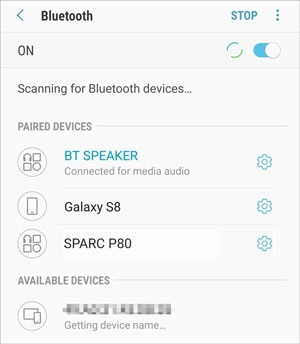
It is easy to switch on Bluetooth on Android. You can make it on the Settings app. To pair your Android handsets, please choose your device’s name on the available list. But if you have paired them before, they will make an auto-connection.
After that, you can select what you want to transfer in the File Manager on the old device, and send them via Bluetooth. Finally, tap the “Accept” option on the new phone, and you will receive the files soon.
Back Up & Restore Data with Google Account
Want to restore different kinds of data types to the new Android device? It is time to add your Google account on the Settings app now. Does your account have adequate storage space to back up your data from the old Android phone? If not, please upgrade your Google cloud space at first.
In general, you can back up data to your Google account in this way:
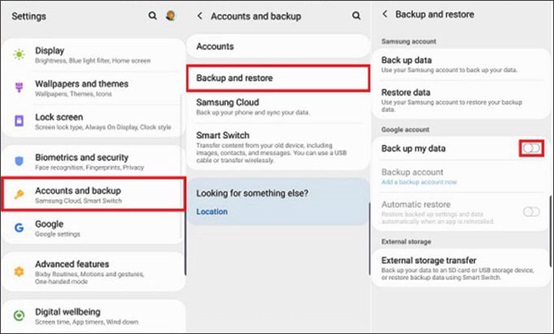
- Open the Settings app and click the “Accounts & backup” > “Backup and restore” option.
- Enable the “Back up my data” feature.
- Choose the “Backup account” and type your account’s information. It will start backing up data from your old phone to your Google account.
When setting up your new Android device, you can directly restore the backup data from your Google account. What a convenient way!!!
Also Read – How To Backup Files On PC
Transfer Contacts, SMS, and Apps with Coolmuster
Is it difficult to transfer contacts, SMS, and apps from the old phone to the new one? Does your Google account fail to restore text messages and call logs to your new phone? This’s the showtime of Coolmuster, a professional data transfer tool.
It can efficiently transfer messages from Android to Android. Additionally, it can swiftly transfer call logs, applications, videos, and more, between Android phones/tablets. There are no complicated steps with it. You can transfer data with the following guide:
- Download and install it on the computer.
- Connect both Android devices to the computer via USB.
- Select data types on the interface and start the transfer by clicking the “Start Copy” icon.

This program can transfer at least 8 types of data between Android handsets. It also supports iOS devices so that you can copy data from iOS to iOS, Android to iOS and vice versa. Simply put, it is an ideal choice.
Conclusion
So, which way introduced above meets your requirements? Make use of it, and you can transfer data from the old Android device to the new one without trouble. Let’s begin your data migration now.