There are ways to backup and then restore your WhatsApp files without hassle, and do not worry if you have no clue about the technique – we’ve got you covered.
With methods like iToolab WatsGo – WhatsApp Transfer, Backup & Restore, it is easy to perform such activity.
Read on to learn various handy procedures to restore WhatsApp backup without uninstalling the app?
Part 1: Can WhatsApp Data Be Restored Without Uninstalling?
The simple answer is No!
The app needs to be uninstalled and then reinstalled for you to restore the backup files. Moreover, you can get the files back when setting up your older account on a new device.
The messaging app generally stores your data on your Google Drive/Local Storage(Android) or iCloud(iOS).
From there, it can easily detect the files once you reinstall or freshly install the app.
We’ll share how to restore them easily and effectively in the next sections.
The Top Solution to Restore WhatsApp Backup – iToolab WatsGo
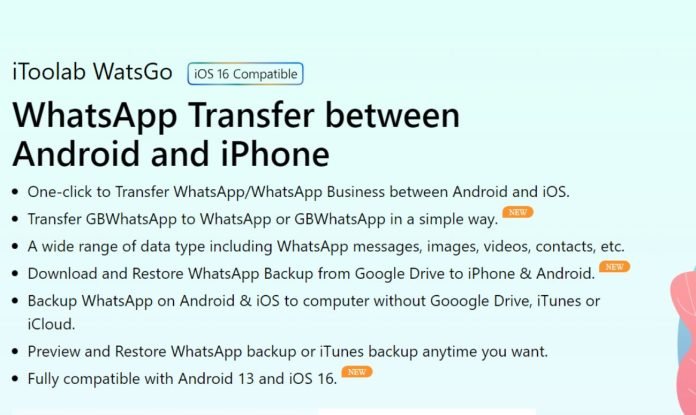
Without the need for cloud account dependency, you can quickly back up and restore your WhatsApp files using a reliable third-party software called iToolab WatsGo WhatsApp Backup and Restore.
So, what features does it have to offer besides WhatsApp backup and restore?
Well, it can:
- Transfer WhatsApp to new phone – Android to Android and iPhone & iPhone to iPhone and Android
- Download and Restore WhatsApp Files straight from Google Drive to iPhone & Android
- Offer support for WhatsApp Business and also GBWhatsApp
- Transfer all file types – photos/videos/chats/etc.
- Restore iTunes backup anytime
- Compatible with the latest Android 13 and iOS 16.
Simply follow the step-by-step guide:
Step 1: Backup WhatsApp on Android and iPhone
- Launch the software, and click on WhatsApp Backup
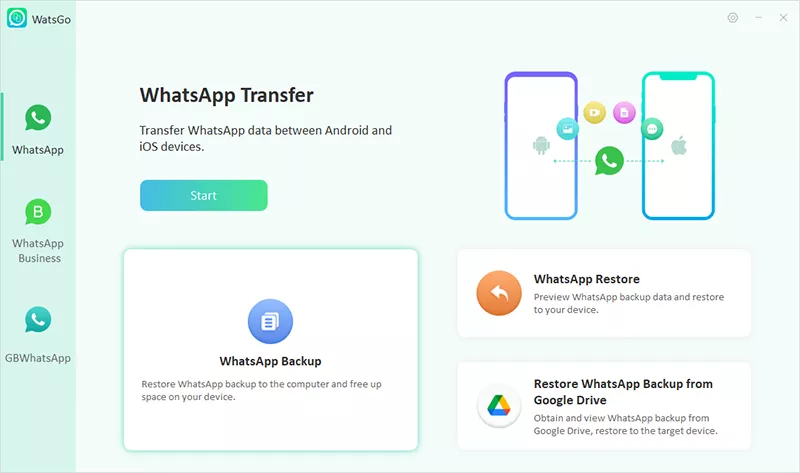
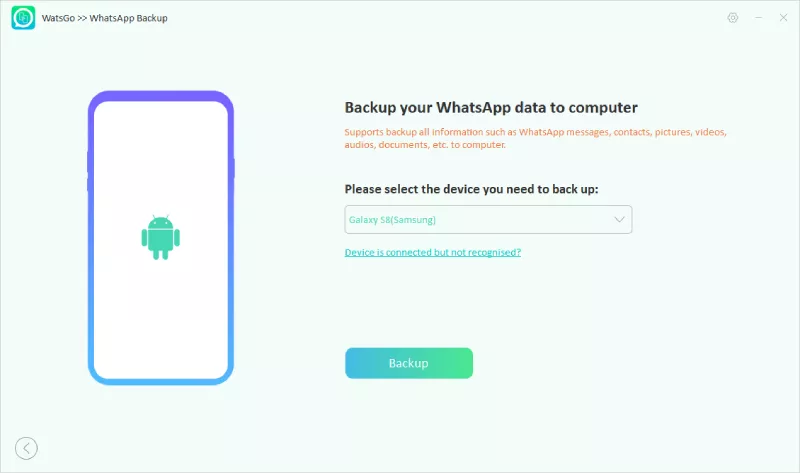
- Connect your Android device and select it on the interface before clicking Backup.
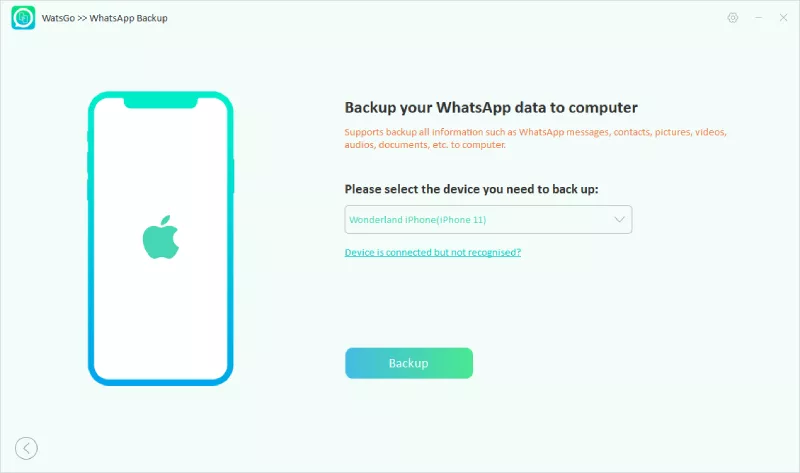
Also, choose the iOS device on the interface, and tap the Backup button.
- Generate the backup files, enter the 64-bit password, and you’ll soon be notified.
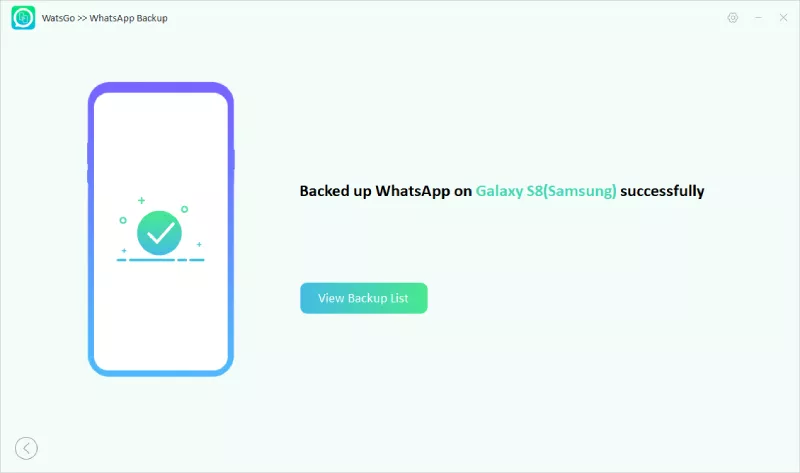
Step 2: Restore the WhatsApp Backup
- Relaunch the software or go back to the main screen. Next, click WhatsApp Restore.
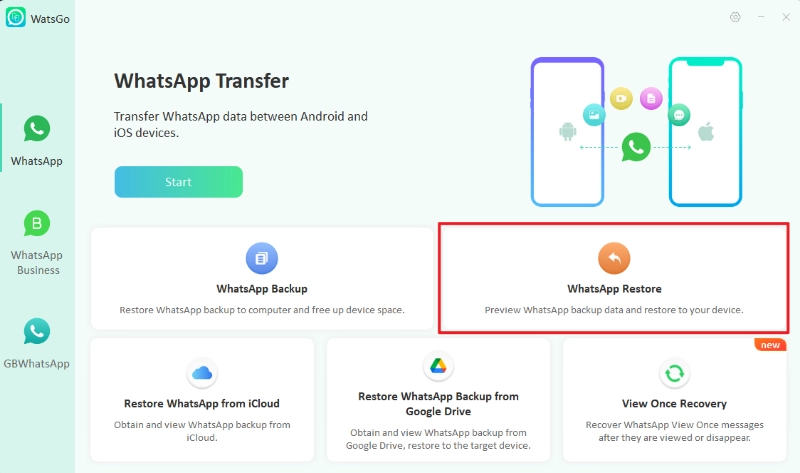
- Connect the device, and depending on its type, head over to the “select history WhatsApp backup” or “iTunes backup” section.
- Next, tap “Restore to Device” and choose your device.
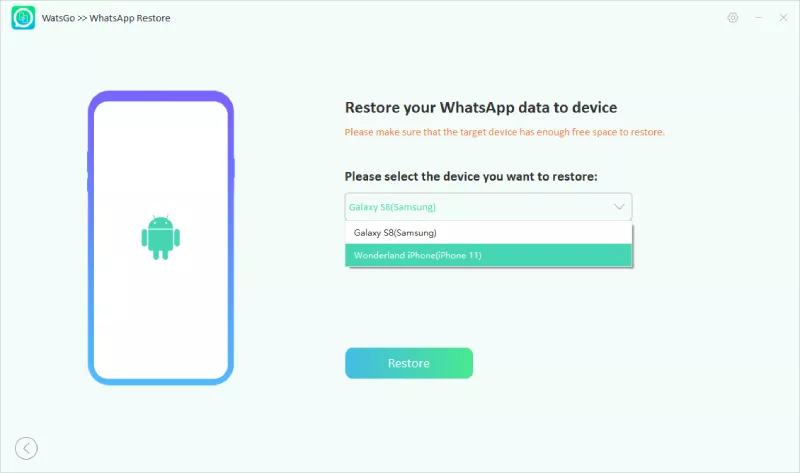
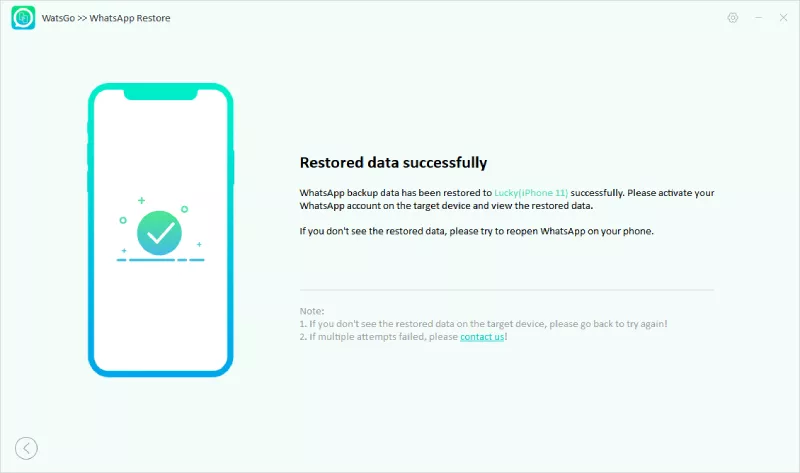
Select the data type and tap Continue.
Amazing deal alert!
Don’t miss out on this fantastic opportunity – click the link here to grab a massive 40% discount on iToolab WatsGo WhatsApp Backup, Restore, & Transfer! Make your WhatsApp data backup experience more affordable and hassle-free than ever before!
Part 2: Alternative Ways to Restore WhatsApp Backup
There are other solutions besides WatsGo that you can resort to for WhatsApp backup restoration.
See this quick tips on how to transfer WhatsApp from iPhone to Samsung device
We’ll look into methods for both Android and iPhone here.
So, continue exploring this guide:
Bring Back Your WhatsApp Files to Android Via Google Drive
All our precious chats are snugly tucked away in our default Google Drive accounts.
Just ensure you’re using the same Google account and phone number linked to your previous backup to pull off this little miracle.
Ready? Here are the steps:
- Install WhatsApp on your phone.
- Enter the account details – your phone number.
- When the prompt asks you to “Restore,” go ahead and tap it. Hit “Next” and get your data back

Restore Using the Simple Yet Effective Local Backup Technique
What about those Android users who do not own a Google Drive account?
Well, there is still hope!
How?
WhatsApp automatically backs up your files to the Android device’s local storage!
But how to restore it? Follow the steps here:
- Launch the File Manager app on your Android device, and tap the WhatsApp folder before selecting Databases.

- Now, once you reinstall WhatsApp Messenger on the device. Set up your account, and tap Restore.
- Done!

Use the iCloud Backup Method to Restore WhatsApp Backup on your iPhone
We have good news if you are an iPhone user!
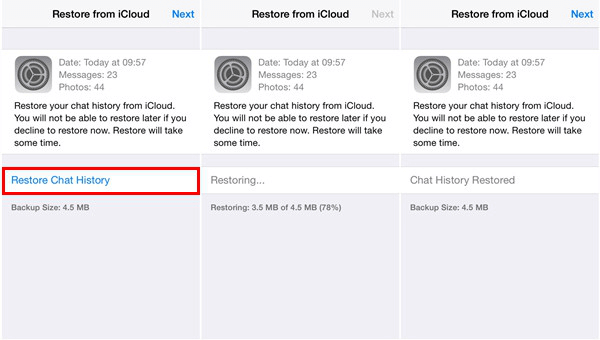
You can back up your files on iCloud and use the same account to restore them on any iOS device.
Simply navigate to the app’s Setting menu, and tap the Chat option. There, select Chat Backup, and you’ll immediately discover the details!
Restore the backup by reinstalling WhatsApp, enabling iCloud Drive on the iPhone, and signing in using the same number.
Final Thoughts
As we conclude this little adventure into the realm of restoring WhatsApp backups, don’t lose sleep if you’re unable to do it without bidding the app goodbye.
Just concentrate on the nifty tricks we’ve shared, and trust us, they’ll work like a charm to safeguard your cherished conversations.
Oh, and while you’re at it, you might want to check out the iToolab WatsGo WhatsApp Backup tool.