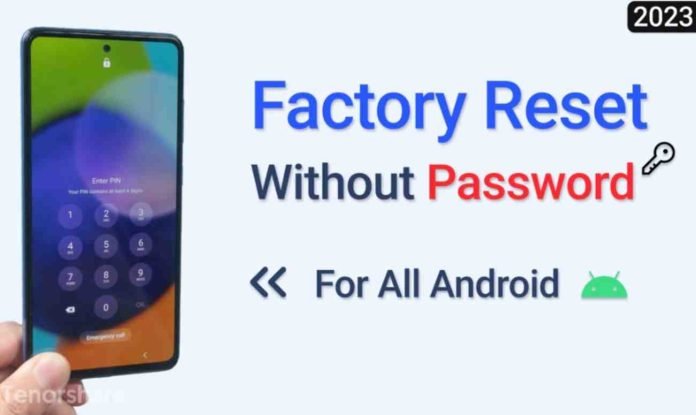
If you’re wondering, “How do I factory reset my phone if it’s locked and whether it’s possible,” fret not. In this detailed guide, we’ll walk you through the step-by-step process of performing a factory reset on your locked Android device in three ways.
Whether you’re facing a forgotten PIN, pattern, password, or any other lock screen issue, our methods will assist you in restoring your phone to its default settings. Let’s start learning how to factory reset Android phones when locked!
Part 1: Can You Factory Reset a Locked Phone?
Yes, you can factory reset your locked Android phone. But resetting it can be quite tricky and might only work in some cases. It depends on the type of lock and security measures the manufacturer sets.
If you’ve got a PIN, pattern, password, or fingerprint lock, you usually need to enter that before you can factory reset the locked phone. This is done to keep your data safe from prying eyes. But if you forget your lock screen credentials, there are still some tricks to unlock and factory reset Android without password. We’ll talk about those methods below.
Part 2: How to Reset Android Phone When Locked?
As we mentioned above, resetting a phone when you’ve forgotten its password is a challenging task. But it’s not impossible. You can either try to manually remove the lock, which may come with certain limitations, or use third-party software like Tenroshare 4uKey for Android. Let’s find out in detail how to reset a phone that is locked with the three methods mentioned below:
Solution 1: How to Reset a Phone That Is Locked?
The best and quickest way to factory reset Android phone locked is through Tenorshare 4uKey for Android. This powerful tool doesn’t require you to diddle daddle with any technicalities. You don’t need to enter your lock screen credentials or need a Google account to unlock and factory reset Android phone.
Moreover, it can remove a variety of phone locks and is compatible with all popular Android devices. Here’s what Tenorshare 4uKey for Android offers to do:
- Reset Samsung, Xiaomi, Vivo, Oppo, Google, Motorola, LG, HTC, Huawei, and OnePlus devices without needing a Google account.
- Bypass FRP and remove PIN, password, screen lock, biometric, and Face ID on Android phones.
- Supports 6000+ Android phones and tablets.
- Supports devices running on Android versions 6 to 13.
Here’s how to hard reset a locked Android phone with Tenorshare 4uKey for Android:
- First things first, make sure to back up your phone data, just to be safe. Get Tenorshare 4uKey for Android by downloading and installing it on your computer. Next, connect your phone to the computer and launch Tenorshare 4uKey for Android.

- Select “Remove Screen Lock,” then choose “Remove Screen Lock” once again for your Android device. Click “Start,” and to confirm the lock removal process, press “Yes.”

- The tool will begin unlocking your phone and once it is done, follow the on-screen instructions to complete the reset process. When your phone restarts, you’ll regain access to it. And waiting the process is finished, you would factory reset locked Android.

Solution 2: How to Factory Reset Android Phone When Locked?
The second way to unlock and factory reset your locked phone is via Android Device Manager. If you’ve enabled the “Find My Device” feature on your device, you can reset it remotely.
However, this method will only work if you’ve set this feature previously before your phone got locked. Also, it will erase all your data, so make sure you have a backup of your phone data before proceeding. Here’s how to reset phone when locked with “Find My Device:”
Go to google.com/android/find and sign in with your synced Google Account. Find your phone from the list and hit “ERASE DEVICE.”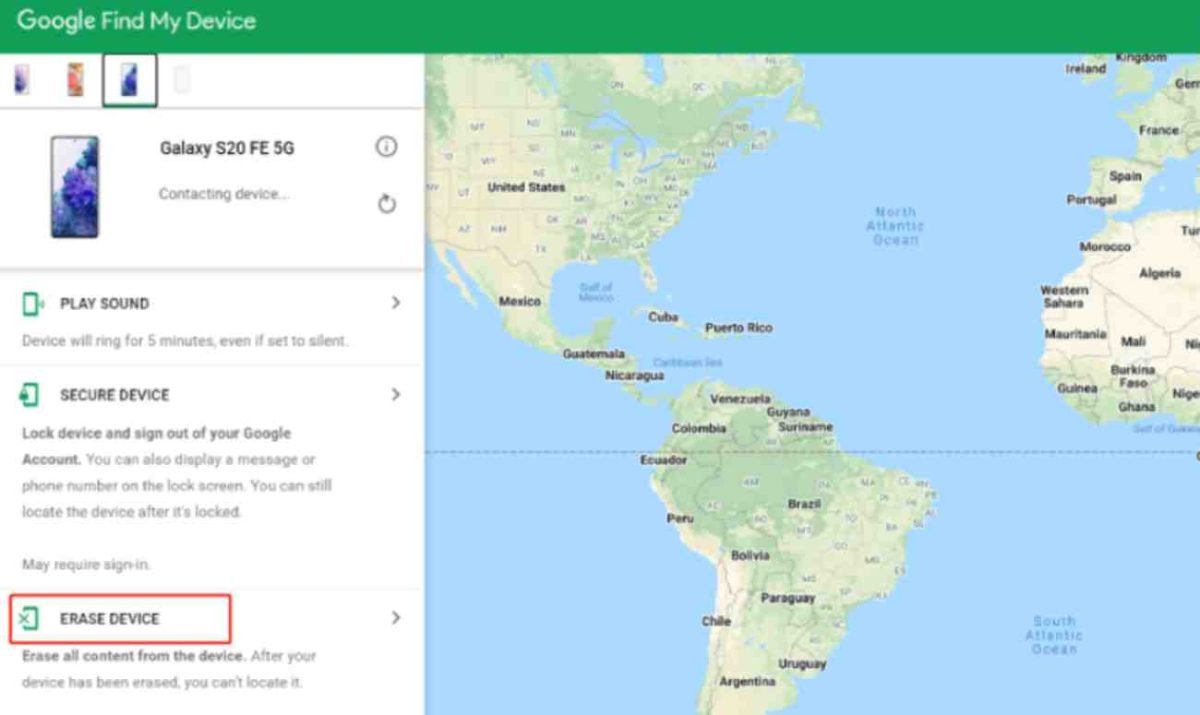
- Go to google.com/android/find and sign in with your synced Google Account. Find your phone from the list and hit “ERASE DEVICE.”
- Confirm by clicking “ERASE DEVICE” again and re-enter your Google Account credentials. Click “Erase” and wait for your phone to reset.
Solution 3: How Do I Factory Reset My Phone if It’s Locked?
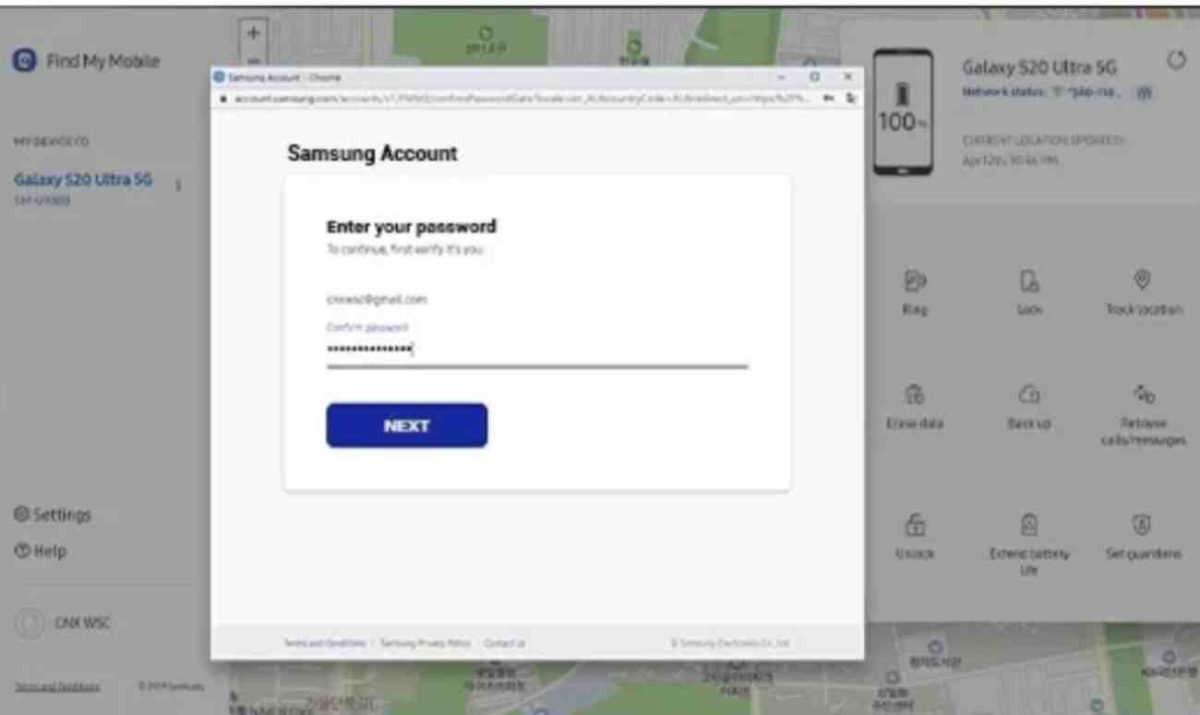
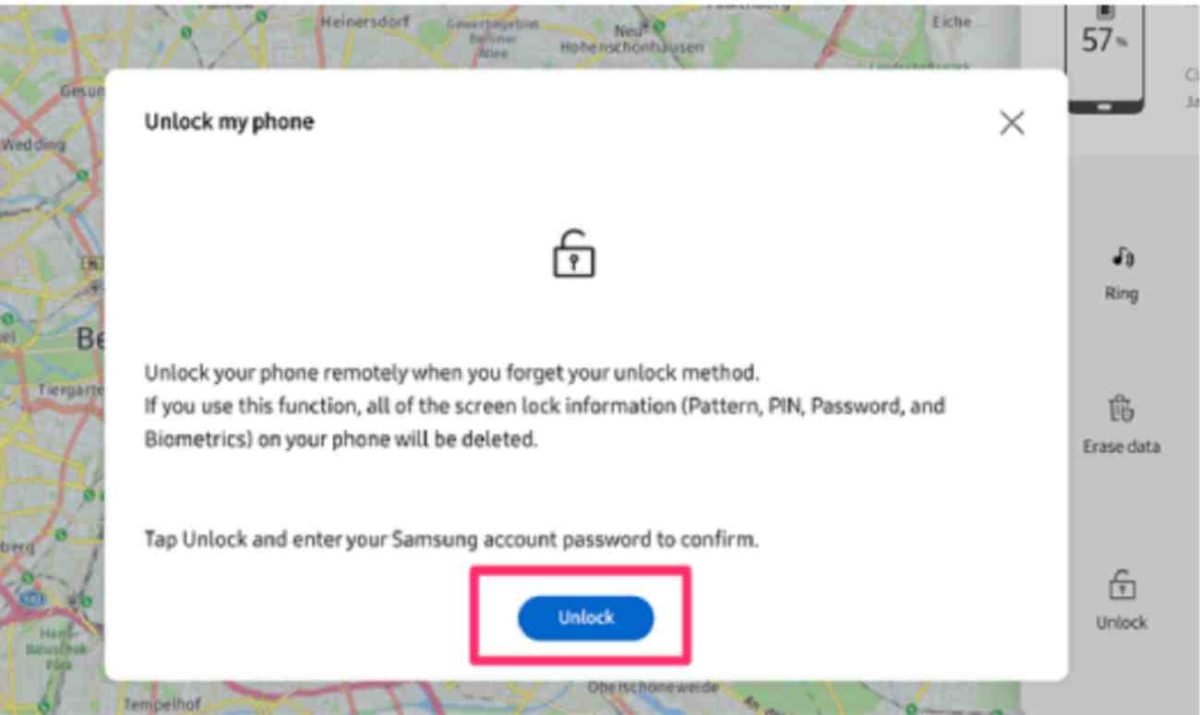
If you have a locked Samsung phone, you can reset it using the “Samsung Find My Mobile” service. However, this method only works with Samsung mobiles. Here’s how to reset a locked phone with the “Find My Mobile” service:
- Go to findmymobile.samsung.com on your PC and log in to your Samsung account. Click “Unlock” on the main page.
- At the bottom, press “Unlock” again, and then enter the Samsung password to sign in. Hit “NEXT.” Your locked Samsung phone will now reset.
Part 3: Tips for Resetting Locked Android Phone
How Many Different Types of Locks on Your Android Phone?
There are five main types of locks you might find on your Android phone that can keep you from accessing it. But no matter what types of lock, you can use Tenorshare 4uKey for Android to fix your Android lock issues.
- PIN Lock: This one asks you to punch in a 4-digit code to unlock your phone.
- Pattern Lock: With a pattern lock, you draw a specific pattern on the Android lock screen to get in.
- Password Lock: Here, you need to type in a password to unlock your phone.
- Biometric Lock: This feature requires you to scan your fingerprint for access.
- Face ID: This uses facial recognition technology to unlock your phone.
What Do I Do Quickly if I Can’t Reset My Locked Android Device?
If you can’t reset your locked Android device, just reach out to the manufacturer or a professional phone repair service for some help. They’ll sort you out.
Is It Possible to Reset a Phone Without Losing Data?/Will Resetting My Phone Erase All of My Data?
Yes, it’s possible to reset a phone without losing data. But if you use Google’s Find My Device or do a factory reset on your locked Android, all your data will be wiped out. However, if you had a backup of your files before, you might be able to get them back.
Part 4: The Bottom Line
Resetting a locked Android phone can be a pain in the neck. While methods like Android Device Manager and Samsung Find My Mobile might work, they come with their fair share of limitations. If you don’t want to go through all the manual hassle to reset locked Android phone, we’ve also got a stellar recommendation for you – Tenorshare 4uKey for Android. It can remove all types of screen locks like FRP, pattern, password, PIN, biometric and face ID and is compatible with over 6000+ Android devices.