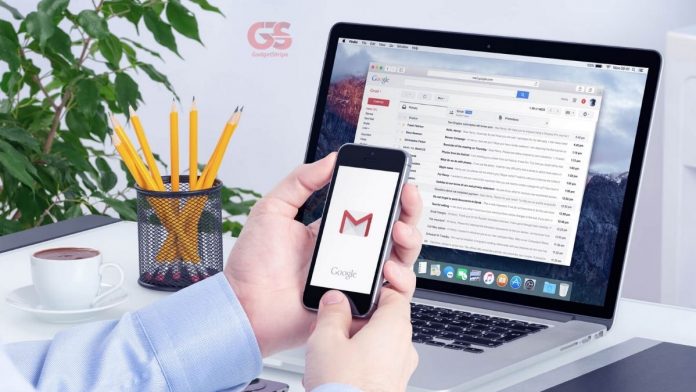
Gmail is one of Google services that allow you to get an email account to send & receive an email. Others also Include Spike App – check the review. A Gmail can also be used to store files and data but what makes Gmail the most successful mailing service worldwide is the ability to seamlessly create an account with google services and other web platforms easily by connecting to Gmail. Here is a simple guide to creating a Gmail account via the web or mobile app.
Methods on How to Create a Gmail Account
Create a Gmail Account Using Web
- Open your web browser (Chrome, Firefox & Brave).
- In the web browser, type the URL “Gmail.com”
- At the bottom left, click “Create account”
- Type in your “First Name”
- Fill in your “Last Name”
- Input your “Username”
- Input your “Password & Confirm Password” (note: your password must contain eight characters with a mix of letters, numbers, and symbols). To check if you type in the correct password on both boxes, click the Eyeball symbol to show the password.
- Click “Next”.
- A window pop-up at the top saying “would you like to save this password” (note: only save the password if it’s your personnel device).
- Next is to “verify your phone number”. Select your country and input your mobile number correctly to receive the six-digit code.
- Click “next” then input the code you receive via SMS. Click “Proceed”. In case you don’t receive the code by SMS, Click “call instead” to receive a call with your verification code.
- On the “Welcome to Google” page. Fill in your mobile number, recovery email address correctly, birthday and Gender (make sure you fill in a mobile number & email you can use to recover your account for forgotten password).
- Click “Next” to proceed.
- Scroll down and Click “I agree” (by clicking I agree, you are accepting privacy and terms). Wait till the loading Gmail finish.
- Click “Next” and click “Ok”.
Congratulations, your Gmail account is ready.
Create a Gmail Account Using App
- For Android, go to Google Play Store & For iOS, go to the App Store. Search for Gmail.
- Download, install & launch the app.
- Tap on Add account.
- Tap on Google.
- Follow the instruction from steps 3 -15 above.
With a Gmail account, you can do a lot of like opening a YouTube account.
Quick Tour of Your Gmail Account
Top left of your Gmail account, you will see:
- Compose: To create messages
- Inbox: To check to receive messages
- Starred: For important messages.
- Sent: For messages, you sent to other email users.
- Draft: To view unsent messages.
Note: All Gmail account has 15GB of free storage for all messages.