Google’s latest phones come with new software and this year with Android 12, there are quite a few new features under the hood and that means lots of cool new stuff to discover. I’m going to show you a few tips and tricks which you can try on your Google Pixel 6 and Pixel 6 Pro.
13 Cool Tips And Tricks For Google Pixel 6 & Pixel 6 Pro
IMPROVE FINGERPRINT SENSOR RELIABILITY
The fingerprint sensor on the regular Pixel 6 isn’t amazing so if you want to make it a little bit more reliable, Here is a handy trick:
- After, you’ve set up your first fingerprint scan.
- Go to SETTINGS.
- Enter SECURITY.
- Click FINGERPRINT UNLOCK.
- Now type in your pin to get to the settings.
- Tap on add fingerprint.
- Scan that same finger or thumb again.
This will make the scanner a lot less likely to fail.
BACK TAP TO SCREENSHOT
For years the default way to take a screenshot on android has been to press two buttons together it can be a tad fiddly depending on the position and the layout of those buttons but you can enable a gesture to take a screenshot just by tapping the back of your phone.
Open Settings System and now select Gestures right at the top you’ll see a quick tap select it and toggle ON the feature on the next screen by default its action is to set a screenshot so now when you tap twice at the back of the phone it’ll snap a screenshot for you. Now if you’d rather have a different function you can whether it be pausing or playing music or launching google assistant or showing notifications If you find it’s too easy to activate or too sensitive you can toggle ON the option at the bottom of the screen that requires stronger taps.
TIP 3: ONE-HANDED MODE
We all know that Pixel 6 and 6 Pro have big screens so you might find some stuff at the top of the screen that is hard to reach that’s why Android 12 now has a one-handed mode that brings stuff down from the top of the screen.
Head down to Settings >> System >> Gestures and choose one-handed mode now toggle it ON, once active when you swipe down at the bottom of the screen it’ll bring the user interface lower down allowing you to get to the stuff at the top with your thumb.
TIP 4: SWITCH OFF at A GLANCE
By default, the pixel’s home screen features something called at A glance. at the topmost of the time it just shows weather conditions but it also automatically shows information like calendar events and travel plans coming up from your Gmail account but if you want to switch this off you can do so by just long pressing the at A glance widget and tap customize now tap at A glance in the list and then turn it off.
TIP 5: HOME SCREEN ROTATION
If you like to use your phone in landscape orientation the pixel having its home screen rotation feature turned off by default may be slightly frustrating but thankfully you can enable it by just long pressing on your home screen wallpaper and tapping home Settings now toggle ON the switch at the bottom next is to allow home screen rotation. Now, whenever you rotate your home screen to landscape the UI will turn with you just make sure you enable the auto-rotate feature in your quick settings shade too to make sure you don’t have to press that little rotating icon on the screen every time.
TIP 6: REVERSE WIRELESS CHARGING
Pixels reverse wireless charging feature is called battery share and it’ll allow you to charge compatible devices wirelessly from the back of your phone just drop down the Quick Settings shade and tap the Battery share option turn your phone over and place your wireless charging compatible product on the back of it. In addition, if you long-press the battery share icon you’ll get to the main battery share settings here you’ll find a slider that allows you to set the limit for when to stop charging just in a case charging your favorite buds drains your phone battery adjust this slider until that limit is at a comfortable level the default is just ten percent.
TIP 7: GOOGLE PAY LAUNCHING
From your lock screen once you’ve set up google pay for contactless payments you can access it directly from the lock screen when your phone is locked you’ll see a little card icon at the bottom of the screen in the right corner tapping it quickly launches Google Pay so that you can use it to pay for goods if it’s not there ensure google pay is set up for your chosen card. Now go to Settings >> Display >> Lock Screen and make sure you have the show wallet toggle enabled likewise if you want it disabled just switch it off.
TIP 8: MULTILINGUAL KEYBOARD
I find this very useful because if you speak more than one language and regularly communicate in more than the one you’ll probably find it useful to have a bilingual or multilingual keyboard rather than having to constantly switch between languages.
Go to Settings >> System >> Languages and then on-screen keyboard and now tap Gboard now tap languages and add a keyboard and now choose the languages you want from the list now when you go to type the installed Gboard keyboard we’ll automatically detect when you’re writing in one language or the other and can correct and predict spellings for both without ever having to switch keyboards.
TIP 9: SWITCH OFF-CAMERA AND MICROPHONE
This one’s a really quick one but it’s a new feature drop down to the settings shade and find the camera and mic toggles tap on one and it’ll immediately block your camera or mic so no app on your phone can access them at that point. This Pixel 6 Tip is a way of improving security on Android.
A GOOD PIECE –
TIP 10: NOW PLAYING HISTORY
This isn’t new but it is a pixel feature, it’s so one of the pixel’s most useful features in recent years is displaying the name and artist of any song currently playing where you are.
To activate it go to Settings >> Display >> Lock screen and now tap Now playing toggle ON the switch if it’s not already to view the songs that have been tagged recently scroll down to Now playing history and you’ll see a list of songs plus the time that they were tagged what’s more if you want to add a shortcut to this list you can do in fact once you’re in the list a pop-up appears asking if you want to just tap yes if it’s not there go to your Home Screen long-press the Wallpaper and tap widgets now choose android System Intelligence and tap and hold the Now playing history shortcut and then drag it to a space in your home screen.
TIP 11: SWITCHING OFF GOOGLE FEED
Turning off your Google discover feed to the left of the home screen you’ll almost always find the google feed page showing you news and videos things that aren’t relevant to you but you can switch it off just long-press on your wallpaper and choose home settings now toggle OFF the swipe to access google app option now it’ll no longer appear.
TIP 12: RAW CAMERA TOGGLE
Showing a raw image switch in your camera open your camera tap the settings cog in the corner and now select more settings now choose advanced and toggle ON the option that says raw and jpeg control now when you open the camera settings menu that loads over the viewfinder or monitors view you’ll now see an option that lets you toggle OFF raw images and in so doing could save you some storage space if you take lots of photos.
TIP 13: THE ANDROID 12 EASTER EGG
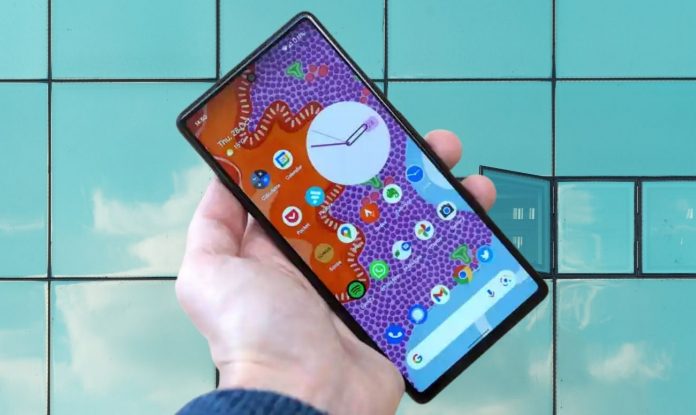
It’s not a new version without an Easter egg and the route to finding it is the same as always open Settings >> About Phone and then tap android version on the next screen, tap android version multiple times until it loads an image of a clock widget now turn the minute hand on the clock until the time gets to 12 o’clock, it’ll load up a spotty android 12 Easter egg wallpaper in the colors of your phone’s theme.
There is one additional element to the Easter egg too long-press your home screen and tap widgets now choose android s-widget and drag and drop the paint chip shortcut to your home screen. If you want to resize this widget to show multiple color cards you can do, tap on it and it loads a full screen and you can tap any individual card to share that color it’s pretty pointless but it’s an Easter egg so it doesn’t really need to have a point.
So there you have it, some of the Pixel 6 features and tips for you to try on your Google phone.