Everybody, whether content creators or working professionals, rely on their Android devices to handle multiple tasks, from capturing stunning photos to preparing presentations, creating documents, recording videos, etc. But what if all of your data gets lost or deleted mistakenly from your Android smartphones? How do you recover photos, documents, and other data from an Android phone in such situations?
Whether you’ve accidentally deleted all the photos, documents, and other data, emptied the Recycle Bin, or lost the files due to a sudden system crash, this blog will help you recover deleted files on your Android device. But first, let’s look at how your photos, documents, and other files can disappear from your Android.
Why Do You Lose Files on Your Android Smartphones?
Apart from self-deletion, you can lose your files from the Android phone for various other reasons. Some of these include:
- Accidental deletion of the files.
- Formatting the internal storage of the Android device.
- Malware or virus attack.
- Hardware or system failure.
- App malfunction.
Understanding the causes mentioned above can help you proactively safeguard your Android device data.
Ways to Recover Deleted Data on Android
There are different methods for recovering deleted photos, documents, videos, and other files on your Android phone or tablet.
Recover Deleted Photos, Documents, and Other Files from the Recycle Bin
The first place to look for lost or deleted files on your Android device is the app’s Recycle Bin/ Trash folder. All Android apps have a built-in Recycle Bin or Trash folder, where deleted files are temporarily stored for 30 days before they are permanently deleted from the device.
- In your Android phone, go to Settings > Storage and RAM.
- Look for a Recycle Bin or Trash option and tap on it.

- Open the Trash folder and look for the Documents, Audio, and other sections from which you want to recover the files.
- Now, look for your missing files, select them, and tap Restore to bring them back to your storage.
Note – Steps may vary with each device model and manufacturer.
Recover Deleted Word Documents from Google Drive
You can easily recover erased data if you use Google Drive to back up your smartphone data, be it photos, videos, documents, audio, and other files. Here’s how to recover deleted data on Android via Google Drive:
- Open Google Drive on your Android phone.
- Tap the hamburger menu on the top-left corner and select Trash/Bin.
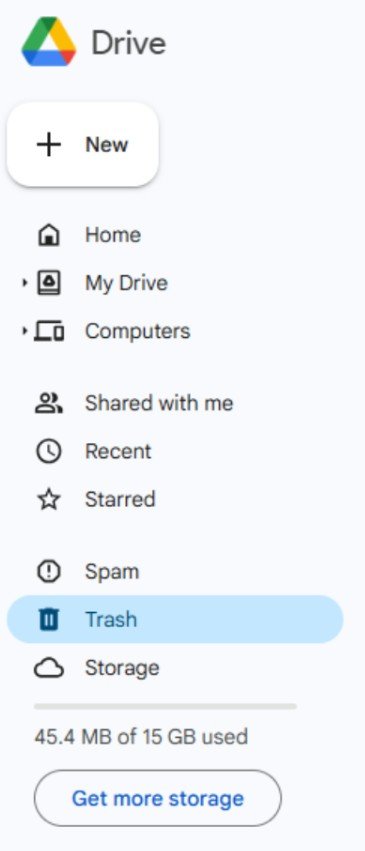
- Look for your missing photos, videos, documents, and other files.
- Select the files and tap on Restore to recover the deleted data.
Note—Google Drive’s Trash folder stores deleted files for 30 days, after which they are permanently deleted, so make sure to check and restore files as soon as possible.
Recover Deleted Files from Dropbox
If you have backed up your photos and other files to Dropbox, you can easily recover them on your Mac, Windows system, or any other device by logging in.
- Open the Dropbox app, tap the Menu icon, and select Files.
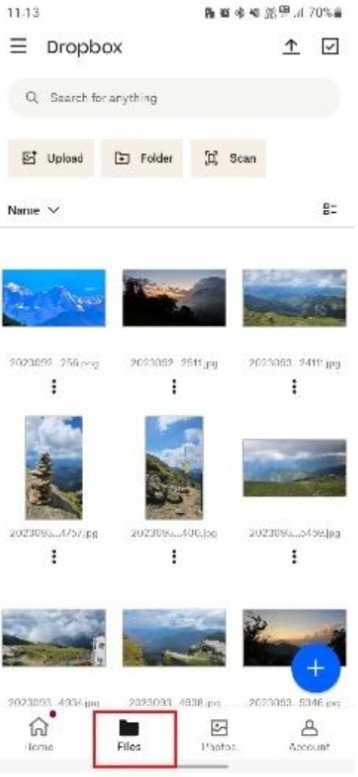
- Look for the deleted photos, videos, documents, and other files you want to recover only if they have been backed up.
- Select the files and tap “Restore” to get them back.
- Recover Deleted Word Documents with Stellar Data Recovery for Android
If none of the above methods work or you don’t have a backup of your Android phone data, don’t worry. Stellar Data Recovery for Android can help you recover your lost or deleted photos, videos, audios, documents, and other files from your Android device. The software supports recovery in almost all data loss scenarios, such as accidental deletion, system crash, virus or malware-affected devices, etc.
Here’s how to use the Stellar Data Recovery tool to recover deleted data from Android phones:
- Download and install Stellar Data Recovery for Android on your Windows PC.
- Launch the Stellar Data Recovery app and select Recover Data from Android Device.
- Select the type of data you want to recover on the main screen and click Next.
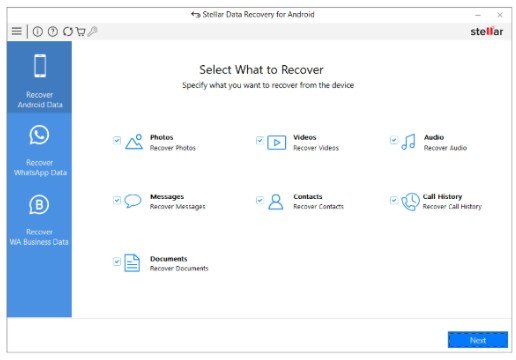
- Connect your Android device to the computer using a USB cable and follow the on-screen instructions to enable USB debugging on your Android device.
- Once the Android device is connected, select it and hit the Scan button to start the scan.
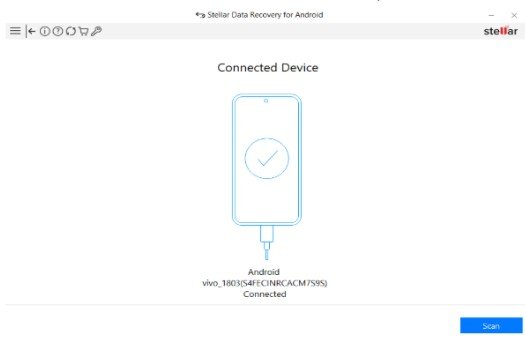
- Allow permissions to help the software scan your device’s internal storage.
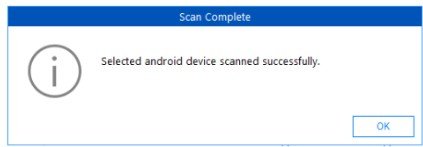
- After successfully granting permission, the app will scan your Android device. Once the Scan Complete pop-up appears, click OK.
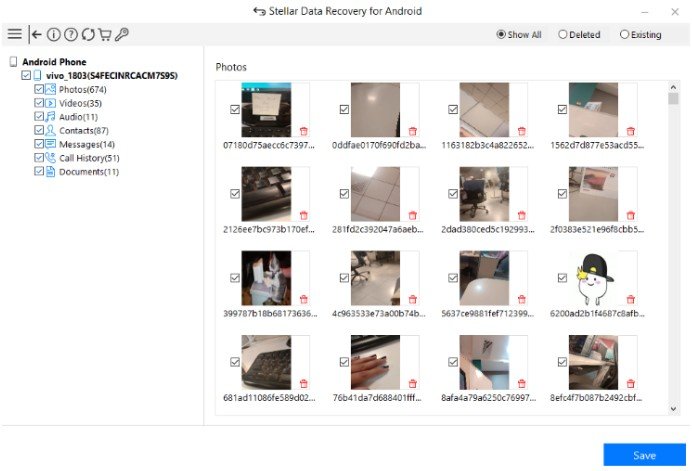
- After scanning, preview the recoverable files and click “Save” to save them to your local disk.
Conclusion
Now you know how to recover deleted photos, videos, audio, messages, and other files lost or deleted from an Android device. Moreover, the chances of successfully recovering lost or deleted photos depend on how soon you start the recovery and whether you have created a backup of your Android phone data on Google Drive, Dropbox, or other cloud storage services. Having a complete backup of your Android allows you to restore deleted or lost data on your device easily. However, without a backup, use professional Android data recovery software like Stellar Data Recovery for Android to recover lost photos.