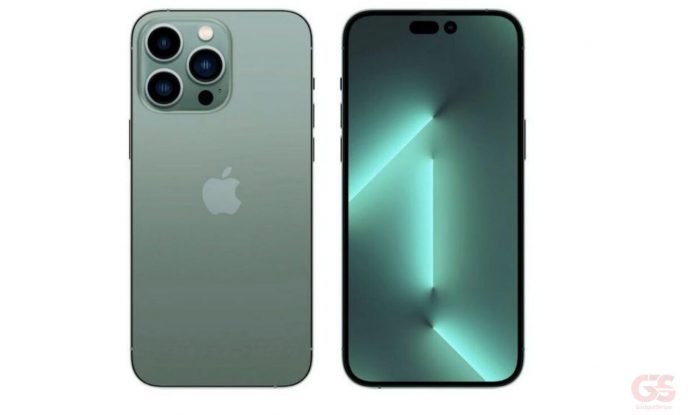
Apple rolled out the iPhone 14 and iPhone 14 pro in September to much excitement and fanfare. At first glance it seemed like a mild upgrade to the 13, there are several improvements and noteworthy features on the latest iPhone.
If you are looking to get the most from your iPhone 14, you have come to the right place. We have extensively studied all the interesting features of the iPhone 14 and this write-up will provide a list of five things you can do with the device.
Capture steadier video with Action Mode
Action Mode on the iPhone 14 and iPhone 14 Pro models, you can capture smooth hand-held video even when you’re moving around a lot.
It works best with lots of light, and you will get a notification stating “More light required” if things are too dark. You can change the settings to use Action mode in lower light.
Action mode can capture video at either 1080p or 2.8k resolution up to 60 frames per second. It supports Dolby Vision HDR or, on iPhone 14 Pro models, Apple ProRes video formats.
Use emergency SOS via satellite
This iPhone 14 feature allows you to use Emergency SOS via satellite to text emergency services when you’re out of cellular and Wi-Fi coverage.
Emergency SOS via satellite can help you connect with emergency services when no other means of reaching emergency services are available. If you are unable to connect because you are outside the range of cellular and Wi-Fi coverage, your iPhone tries to connect you via satellite to the help that you need.
Follow these tips to connect your iPhone to satellite if you need to contact emergency services:
1. Hold your phone naturally in your hand. You do not need to raise your arm or hold your phone up, but do not put it in a pocket or backpack.
2. Make sure that you are outside with a clear view of the sky and the horizon.
3. Be aware that trees with light foliage might slow down the connection, and dense foliage might block it. Hills or mountains, canyons, and tall structures can also block the connection.
4. In case you need to turn left or right or move to avoid a blocked signal, your iPhone provides guidance—just follow the onscreen instructions.
Pair Nintendo Switch Joy-Cons with your iPhone
Apple has long had a feature that allowed you to pair third-party controllers, like the PS5 Sony DualSense and Xbox Core Controller in order to play mobile video games more comfortably.
You can now pair your Nintendo Switch Joy-Con controllers to your iPhone 14. To start, hold down the little black pairing button on the Joy-Con, until the green lights start running back and forth, indicating the device is in pairing mode.
Next, open your iPhone and go to Settings > Bluetooth and select the Joy-Con from the list. Repeat this step with the other Joy-Con.
Download a betting app
Betting has become a popular pastime among Nigerians over the years and with the iPhone 14, it is easy to indulge in your hobby. A check of the best betting apps available shows that a vast majority are available for download on the Appstore.
The increased speed of the iOS 16 means that you can download your preferred betting app with minimal fuss directly from the Appstore. Using the app is also pretty smooth as all the pages and numerous sections have quick load times.
View and share saved Wi-Fi passwords
IOS users have been able to share Wi-Fi passwords for a while now, but only by placing two Apple devices near each other. If you also wanted to share a saved Wi-Fi password with someone else, like an Android user or someone on a computer, you had to know the password as you couldn’t just dig out the password from your settings.
All of that has changed with the iPhone 14 as iOS 16 gives you the opportunity to view and share the password for the Wi-Fi network you are on. Just go to Wi-Fi in under settings and tap the tiny information icon to the right of the network you want the password for.
To view the network password, tap the Password section and then use Face ID or enter your passcode to view it. You can then tap Copy to copy the password into your clipboard and share it.