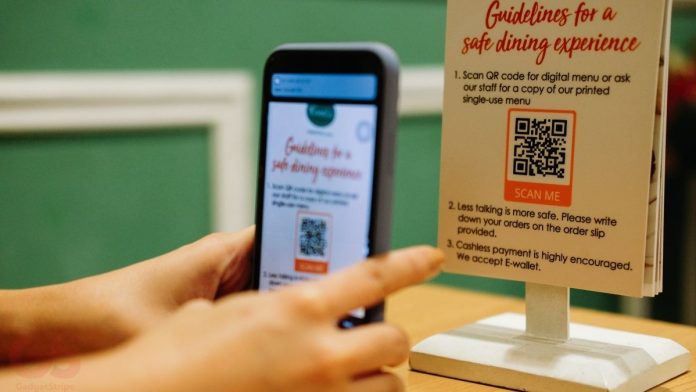
I don’t know about you, recently I have started seeing QR codes everywhere when I’m at a restaurant, a store, marketing, and event and on websites. It’s generally everywhere you look, if you have not seen a QR code I will be putting a picture of the QR code and you will be seeing them more in restaurants. This is how to scan qr codes on phones – iPhone 11 or iPhone X.
The QR code system initially was not used everywhere but due to the pandemic today to avoid the widespread of the disease in public places like restaurant etc. to prevent people from handling the menus, you just have to scan their QR code and it pops up the menu on your phone and you can go through it on your phone and choose what you desire. Here, I am doing an explanation of what is a QR code and how do you scan a Qr code with an iPhone.
What is a Qr code?
A Qr code is primarily a barcode (the barcode is usually in a straight line) but a little bit fancier. A QR code is a picture you can scan with your phone camera & automatically it takes you to what has linked with the QR code either a website, a social media site, a pdf, or download a document and an email.
Previously, to scan a QR Code with an iPhone you have to download a third-party app in order to use it however now it’s automatic on your iPhone.
Why QR Codes Are Changing the Dining Experience
Beyond just scanning a code, what you’re really doing is unlocking a smarter, more hygienic way to interact with services—especially when dining out. Many restaurants have now fully embraced this shift, replacing physical menus with dynamic, scannable alternatives. This not only minimizes physical contact but also allows businesses to update their offerings in real time. One standout example of this evolution is the Digital Menu For Restaurants From Luminati, which lets diners view high-quality visuals, toggle between dietary filters, and even place orde
How to Scan Qr Code with an iPhone
As long as you are using iOS, the operating system on your iPhone must be iOS 11 or higher to enable QR code in your camera.
How to Enable Qr code
- Go to settings
- Tap on general
- Tap on about
- Look at the software version to check if it’s 11 and above
- Tap back twice to return to the settings screen
Next, you have enabled the QR code to be able to be read in the camera settings.
- Scroll down till you see the camera
- Tap on camera.
- Make sure the scan QR codes are on the green (enabled) not gray (disabled).

Scan Qr Code with an iPhone Camera
After following the steps above, you are ready to do to scan a QR code.
- Go to the home screen.
- Tap on camera.
- Place the Camera on the photo of the Qr Code.
- window pop-up immediately with “WEBSITE QR CODE” Open “qrco.de” in Safari.
- Click on it, then Automatically it will redirect you to what is linked to the Qr Code.
Note: For the camera to scan Qr Code, the camera mode must be on Photo not on portrait, video, or slow-mo.