The use of video is continuously increasing. But not everyone is an expert for general users. For some users, it can be a challenging medium. Thankfully, screencasts make video-making more acceptable. If you want to use more videos in your presentation, training, or even email, this is a great option to get started.
What exactly is a screencast?
Generally, a screencast is a digital video that records your computer screen, which usually involves some type of audio notation. You can consider a screencast as the video equivalent of a screenshot. You may have heard that screencast is also called screen capture video or screen recording.
Screencasts are great ways to share your ideas or studies and can be used for home or office work. If you want to start using screencasts at work, try recording a webinar, creating a quick how-to video or video tutorial, or sending a sales video.
Best of all, both creators and viewers benefit from these videos. The creator can record a whole process or instruction without repeating it all at once. Viewers also benefit because they can watch the video whenever it is most convenient for them. This is especially helpful when you make instructional videos because learning can happen in real-time – at the right time when it is happening.
Now that you know what screencasts are and what they can do, let’s see how to do it easily!
RecordCast screen recorder
RecordCast is a free online screen recorder with a video editor. There are a lot of online screen recorders that you can use immediately without installing anything. You can find a screen recorder with webcam recording capabilities with the screen, but you may need a thorough video editor to correct the output at the end of the day.
RecordCast eliminates the need for an additional video editor by providing an online tool. It is basically a web app that you can use in any modern web browser to record your screen. It can record a screen with a webcam and audio or without audio.
After recording the screen, you can download the recording or open it in its online video editor, where you can merge media, crop, mask, and more.
So let’s go through it in detail. Visit the RecordCast website here: https://www.recordcast.com/.
It is quite easy to start screen recording with RecordCast. All you have to do is go to the website in your web browser, and from there, click on the Start Recording button. No account is required for screen recording and downloading. However, if you want to save your recording project to the tool, you need to create an account.
Recoding mode
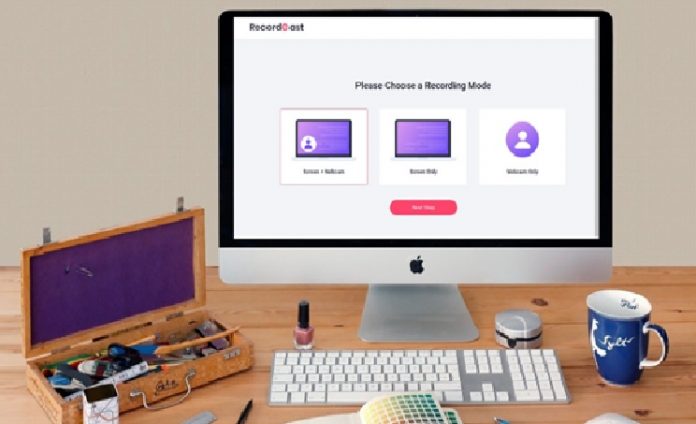
Before recording begins, you can choose the recording mode. RecordCast has three modes for you to choose from:
- Screen + Webcam
- Screen Only
- Webcam Only
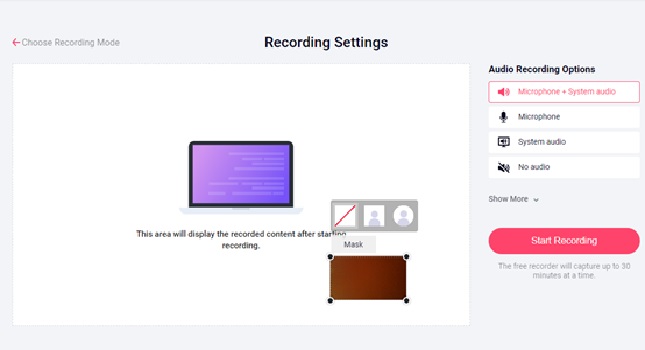
Choose a recording mode that meets your needs. When you use the webcam to record yourself in the video, you can adjust your profile’s size by dragging and moving the handlers on the profile Mask. It’s very flexible to move your video profile to anywhere you want in the video. Just select the profile object and use the drag & drop feature to put it anywhere you want. What more, you are free to apply a mask of a round or rectangle, or square to your profile.
Audio recording option
After choosing the recording mode, you are prompted to choose the audio recording option. It gives you the following options.
After choosing the recording mode, you are prompted to choose the audio recording option. It gives you the following options.
- Microphone + System Audio
- Microphone Audio
- System Audio
- No Audio
After clicking on the Start Recording button here, a pop-up notification will be open, where you can select one of the open windows to record or a Chrome tab, or you can choose to record the entire screen. You can also check these apps that can be used to add background music to videos on your smartphones.
Pause or Resume Recording
After selecting the screen and audio recording modes, recording begins. During recording, you get a recording interface on the RecordCast website. You have the option to pause the recording in between and resume it according to your needs. Note, you can record up to 30 minutes of each time for free.
Download recorded video
It shows the recording video in the main window that you can play and download when you finish recording. The video is downloaded in WEBM format. If you want to download the recording in MP4, click the other button of “Edit and Export in MP4”.
Edit recorded video online

With the “Edit and Export in MP4” button, you get the option to open the video in the online video editor. This option takes you to the online video editor of ReocrdCast and loads the recorded video into it.
From there, you can perform operations like split, crop, copy, paste, text, background, mask, etc. You can also import media such as photos, music, videos from your storage and edit it with the recorded video. If you want to record more video clips, it helps as well. You can change the text size, color, font, and other properties as you want.
Finally, you can export the edited video and download it with high resolution. RecordCast allows you to export video into three resolutions for free: 480p, 720p and 1080p. All of those operations are free and without any watermarks. What’s more, you can also save your video editing project online by creating a free account on RecordCast.
Summary
Are you looking for a screen recording and digital video editing program that helps you record stunning videos of essential things on your computer? Want to share your remote class in the most attractive way? Then RecordCast can help you record your computer screen and edit videos, and fully explore your creativity.
You do not have to learn techniques to use this screen capture video or recording software. It has a clean, user-friendly interface that lets you easily understand all its features. What is the best is that it is completely free of charge, with no extra fees for accessing all the features. And there are no ads and watermarks on the output videos. Why not have a try?